
Your server has stopped answering over SSH, your site does not open, and the panel still shows a green "Running". That is not necessarily a hosting outage: most often the system inside simply did not come up. The good news is that the service page in WeaselCloud has everything you need to sort it out yourself: a console, a boot log, a recovery mode and a reinstall. Below is what each button does and how we used them to repair a server we broke on purpose.
Where it all is
Open the list of services in the client area and pick your server. Below the service name and the billing block you will find the control panel for the server itself. Its interface is in English, so the button names below are exactly as in the panel.
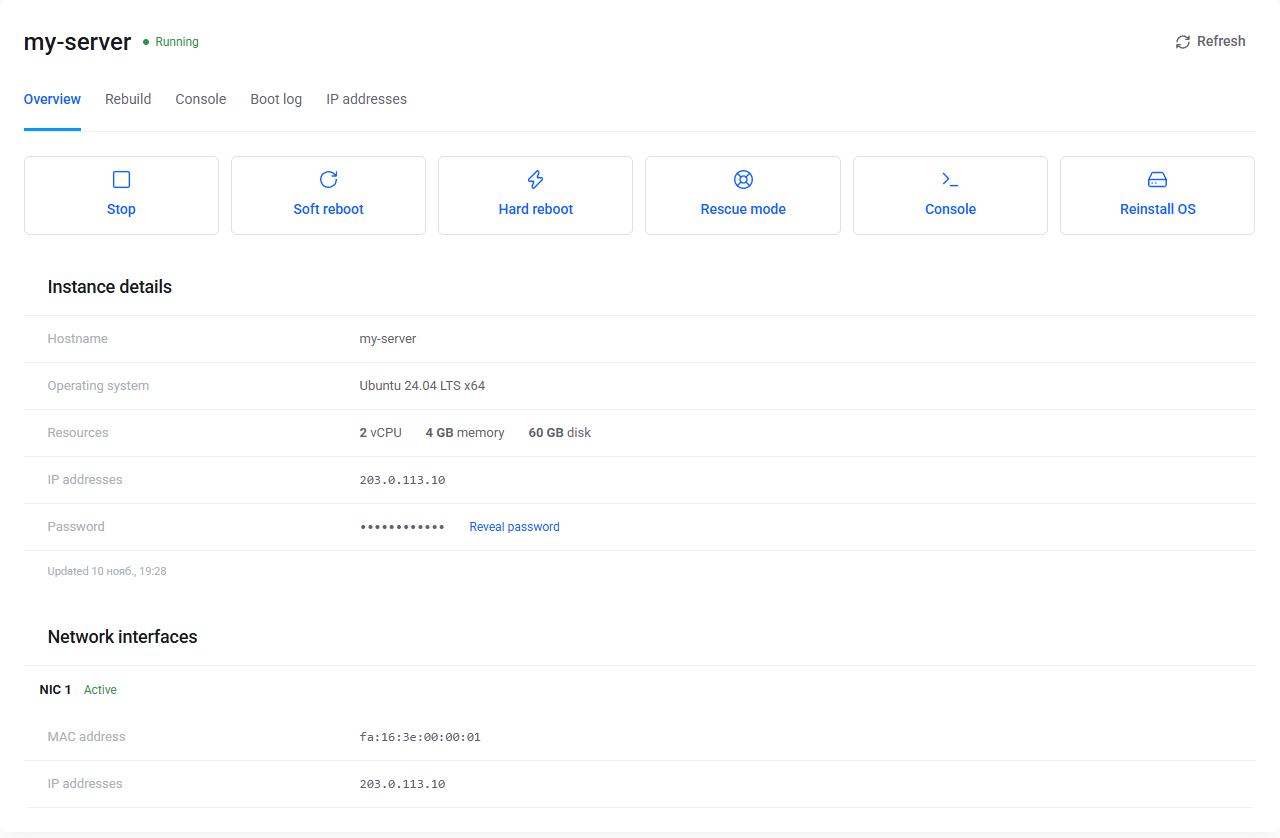
There are five tabs: Overview (buttons and server details), Rebuild (reinstall), Console (the server's screen), Boot log (the boot log) and IP addresses (addresses and reverse DNS, covered in a separate article about the PTR record). The root password hides behind the Reveal password link in Overview: click it and the password appears, with Hide password and Copy next to it.
Reboot and stop
Before each of these three actions the panel asks you to confirm and briefly explains the consequences. Here is what it says and when each action fits.
| Button | What the panel says | When to press it |
|---|---|---|
| Soft reboot | The server restarts gracefully, services are briefly unavailable | First choice: after a kernel update, a stuck service, a settings change |
| Hard reboot | The server is restarted forcibly, unsaved data may be lost, services are briefly unavailable | Only if Soft reboot did not help and the system does not respond |
| Stop | The server shuts down and stays off until you start it again | When you need the server off for a while |
We tested Stop on a test server. Forty seconds after the confirmation the status changed to Stopped, the network interface showed Down, and the Stop and reboot buttons were replaced by a Start button. Rescue mode, Console and Reinstall OS stay available on a stopped server. Start boots the system. SSH did not answer right away, so allow a few minutes (three and a half minutes after the click the server had already been up for three). The panel showed "Your server is updating…" meanwhile and the buttons were inactive.
Stopping does not cancel the service: it stays in your list and renews under the usual rules; auto-renewal stayed on for us. If you actually want to stop paying, that is covered in the article on the billing cycle and auto-renewal.
Console and Boot log: see what the server sees
The Console tab is the server's screen in your browser, as if a monitor were plugged into it. It works without a network and without SSH keys, so it rescues you when you have locked yourself out with the firewall or broken the network settings. The "Connected" status means the link to the screen is up; the Ctrl+Alt+Del button sends that key combination and Expand console enlarges the screen. On a running server you will see a login: prompt; you can log in as a local user with a password (usually root and the password from Reveal password; that password worked over SSH in rescue mode in our test). SSH keys do not work on the console.
If the screen says "Disconnected. Reopen the Console tab to reconnect", open the tab again. If it says "Console unavailable. Check access and gateway configuration", wait a minute and reload the page, and contact support if it repeats.
The Boot log tab shows "the last lines the server printed to its serial console while starting up". The Reload button refreshes them. It is the fastest thing to check when a server is on but not answering: the cause is often visible in the last lines.
A live example: "Running", but SSH is silent
The most common reason for this picture is a mistake in /etc/fstab, the file listing the disks the system attaches at startup. Say you attached a second disk, added a line for it, and later detached the disk. We reproduced this on a test server with Ubuntu 24.04: we appended a line for a non-existent disk /dev/vdb1 to /etc/fstab and rebooted.
A couple of minutes later port 22 stopped answering, while the panel kept showing "Running". The Boot log ended like this:

"Emergency mode" means the system could not complete a mandatory boot step (attaching the disk from fstab), stopped, and is waiting for an administrator to enter the root password on the console. By this point the network has come up (the log shows ens3 addresses and routes), but the regular services, SSH included, no longer start: the boot stopped in emergency mode. That is why port 22 is silent. The main takeaway is also visible: "Running" in the panel means "the virtual machine is on", not "the system is working".
Fixing it with Rescue mode
Rescue mode boots the server not from your disk but from a separate temporary system, while your disk is attached as a second, unmounted one. That lets you fix files that prevent a normal boot.
Step 1. Switch on Rescue mode
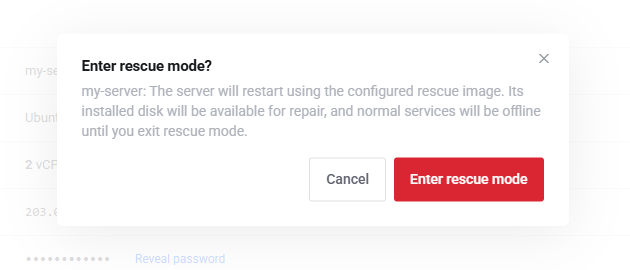
On the service page click Rescue mode and confirm. The panel warns that the server will restart from the rescue image, your installed disk will be available for repair, and normal services stay offline until you leave the mode.
Step 2. Wait for the recovery mode
Give it about a minute. The status changes to "Rescue mode" and only three buttons remain instead of the usual ones: Exit rescue mode, Console and Reinstall OS.
Step 3. Connect over SSH
Log in as root with the same password from the panel (Reveal password). This worked in our test. The server's SSH key is different in rescue, so SSH will complain about a changed fingerprint. That is expected: a different system has booted. Remove the old entry and connect again. After you leave rescue the fingerprint changes back, and you will have to run ssh-keygen -R once more:
ssh-keygen -R 203.0.113.10
ssh root@203.0.113.10
The address above is a documentation one; use your server's address.
Step 4. Find your disk
See what the disks are called in the rescue system:
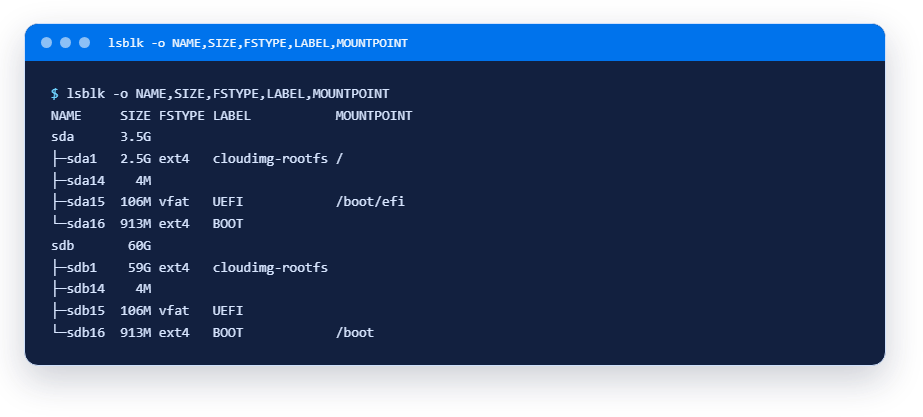
Let us read the output. The small 3.5 GB disk sda is the rescue system itself, mounted as the root (/). Your 60 GB disk became sdb, its root partition is sdb1, and it is not attached anywhere. Note the labels: both disks carry the same ones (cloudimg-rootfs, BOOT), and in our test the rescue system's /boot ended up mounted from a partition of your disk. So in rescue, mount partitions by device name rather than by label, and check lsblk every time: on another server the names may differ.
Step 5. Fix the file
Mount your disk's root partition, find the mistake and correct it:
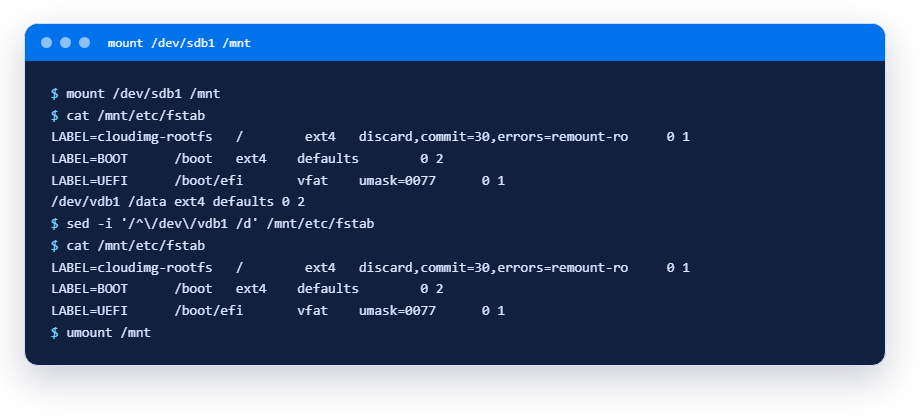
mount attaches your disk to the /mnt directory, and your server's files appear under /mnt/etc, /mnt/home and so on. cat then shows fstab: the last line is the culprit. sed deletes the line that starts with /dev/vdb1 ; instead of deleting, you can put a # in front. The second cat checks the result, and umount detaches the disk cleanly so the change is certainly written.
Step 6. Leave Rescue mode
Click Exit rescue mode and confirm: the panel warns that the server will restart from its installed operating system and asks you to save your repair work first.
Step 7. Check the result
About a minute later (in our test, sometimes up to two) the server answers over SSH. Check:
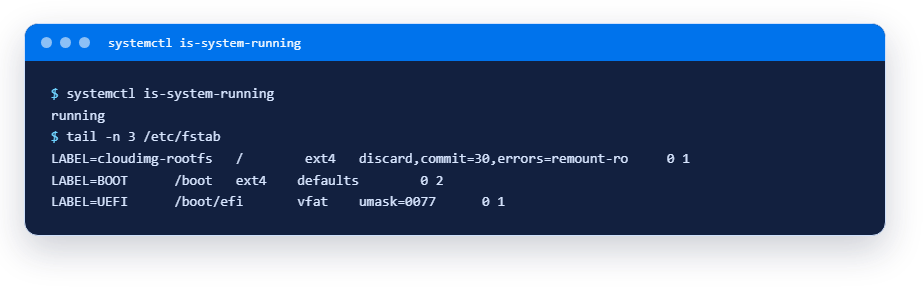
running means all services came up without errors. The server booted with your system and the same IP address: rescue mode wipes nothing.
To avoid repeating the mistake, extra disks in fstab usually get the nofail option: if the disk is missing, the system keeps booting instead of dropping into emergency mode (after a delay while it waits for the disk, up to ninety seconds by default; the x-systemd.device-timeout=5 option shortens it).
OS reinstall: when repairing costs more than starting over
The Rebuild tab (also the Reinstall OS button) installs a clean system onto the same server. The panel says it plainly: the current operating system and its data will be replaced, while the VPS itself, its addresses, configuration (resources) and service password are kept. When we reinstalled a test server on 5 November, the password did stay the same.
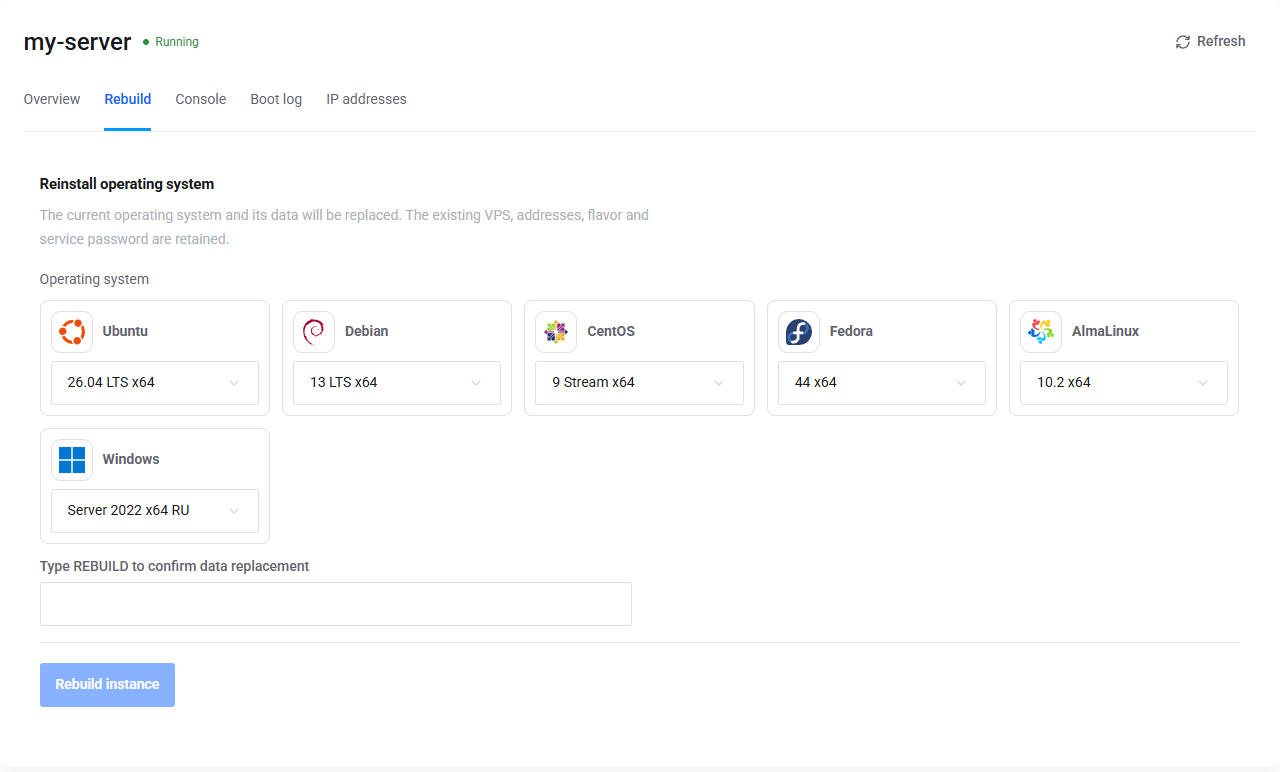
On 10 November 2026 the list contained Ubuntu (26.04, 24.04, 22.04, 20.04, 18.04, 16.04), Debian (13, 12, 11, 10, 9), CentOS (9 Stream, 8 Stream, 8), Fedora (44, 43, 36, 33), AlmaLinux (10.2, 9.8) and Windows Server (2025, 2022, 2019, 2016, 2012 R2; 2025 only in English, the others in English and Russian). The list changes, so check the current one in the panel. To stop you wiping the server by accident, the Rebuild instance button stays inactive until you type the word REBUILD into the confirmation field. It is also inactive while the server is in Rescue mode: click Exit rescue mode first.
A reinstall is irreversible: the disk is overwritten. If anything on the server matters, take a copy first, for example following "How to back up your VPS yourself". And if you still need the data but the system does not boot, go into Rescue mode first and copy the files you need to another server: the disk is available in that mode.
What to do when the server is silent
- Make sure it is not your internet connection or your provider: the five-minute check.
- Open the Boot log. If it shows emergency mode, a mount error or a kernel panic, go to Rescue mode.
- If the log is clean but SSH is closed, log in through the Console: you may have closed the port in the firewall (see basic ufw) or disabled password login before adding a key.
- If the system hangs and does not react on the console, try Soft reboot, then Hard reboot.
- If Rescue mode did not work out or repairing takes longer than reinstalling, copy your data, click Exit rescue mode and do a Rebuild (reinstalling is not available inside Rescue mode itself).
- If nothing helped or the panel itself shows an error, open a ticket. Include the service name, what exactly you pressed and the last lines of the Boot log.
FAQ
Does rescue mode erase data?
No. According to the panel and to our test, the server's disk is available for repair: we mounted it, fixed a file, and after leaving rescue the server booted with our system and the same address. Only a reinstall (Rebuild) wipes it.
How long does it take to enter and leave Rescue mode?
In our test, about a minute to enter (until SSH answered) and about a minute to leave, sometimes up to two. On a busy node or with a large disk the time can differ.
What does "Running" show when the server is unreachable?
Only the state of the virtual machine: it is on. Whether the system inside has booted is not determined by the panel; you see that in the Boot log and on the console.
Is the root password visible to everyone?
It is hidden behind dots until you click Reveal password. Do not show it in screenshots or send it to chats: if it leaks, change it with passwd after logging in.
Read next
- How to copy files to a VPS and back: scp and rsyncscp for one-off copies, rsync for repeated ones: syntax, destination and trailing-slash traps, dry runs. Output from a live VPS.8 min8 min
- SSH keys for a VPS: how to create one, add it to the server and turn off password loginCreate an SSH key, add it to your VPS, fix Permission denied (publickey) and turn off password login. Output from a live server.11 min11 min
- Out of memory on a VPS: swap and the OOM killer explainedDid the server silently kill your process for lack of memory? How to read the OOM killer log and add a swap file. Output from a live VPS.10 min10 min
Didn't find an answer?
The support team will help.