
For a one-off transfer of a file or folder over SSH, scp is enough: one command with the same syntax as ordinary copying. For repeated syncing, when you only want to send the changes to the server, rsync is more convenient. We go through both on a real server: what to type, where people go wrong most often (the trailing slash and the destination path) and what a dry run does.
The server was a VPS with Ubuntu 24.04 (OpenSSH 9.6p1, rsync 3.2.7); the client was a Linux machine with the same versions. We connected with a password; in the lab we supplied it with sshpass so the script would not wait for input, and for you the commands ask for the password themselves or use a key. The IP in the output is replaced with 203.0.113.10. The test folder site is five files and 4.9 MB: a page, a stylesheet, two fake "photos" and a log.
scp: copy a file or a folder to the server
scp (secure copy) is copying over SSH. You write the server as user@IP:path, and the colon separates the address from the path. For a folder you add -r (recursive: with everything inside). In a live terminal scp normally prints a progress line per file; our lab did not capture one, so we check the result with ls on the server.
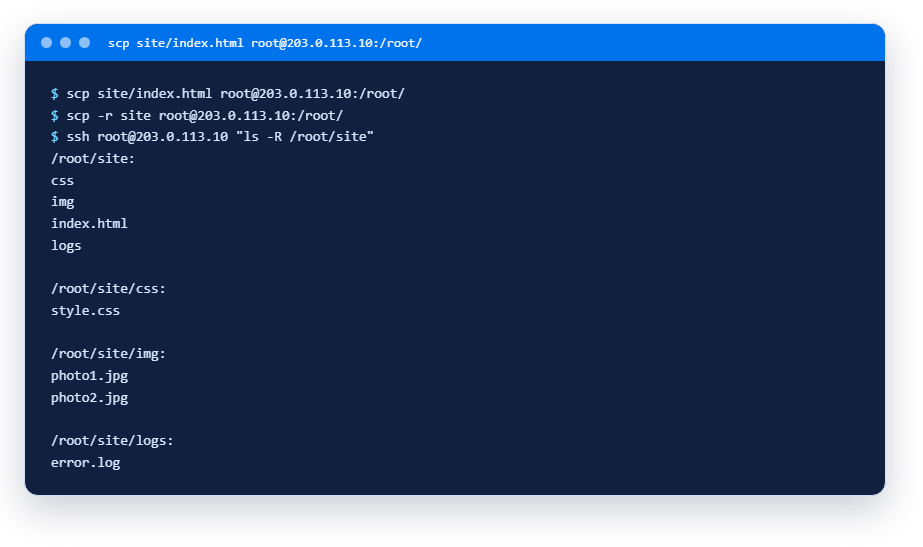
The first command put one file into /root/, the second put the whole site folder into /root/, and it kept the same structure on the server.
The main trap: what happens to the destination folder
The most common surprise: the same command gives a different result depending on whether the destination folder exists. We ran scp -r site root@IP:/root/newdir twice and looked at what lay in /root/newdir each time:
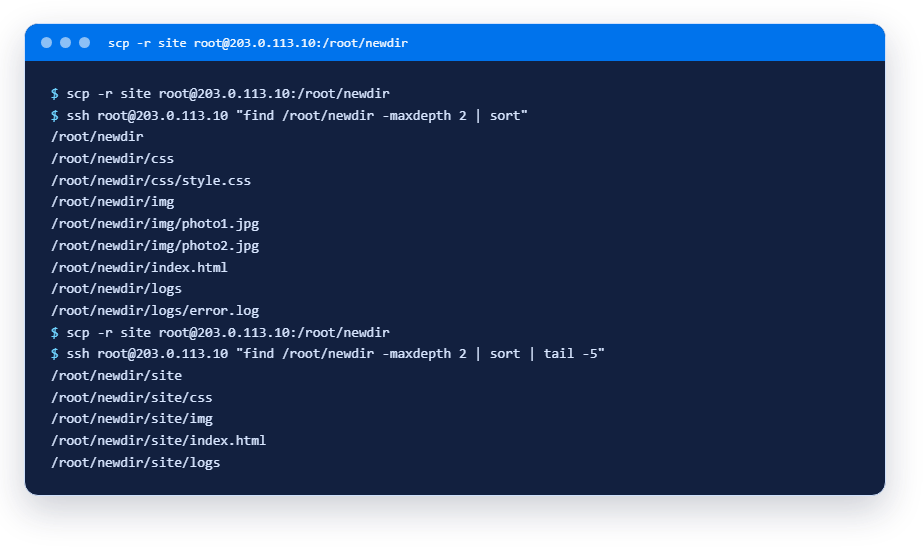
The first time there was no newdir, and scp created it as a copy of site: the contents sit right in newdir. The second time newdir existed, and scp put site inside it: you get newdir/site. If you run a deploy script a second time, this is how you easily end up with a nested copy instead of an updated one. The rule: know in advance whether the destination folder exists.
The same kind of surprise happens with a single file. When we copied a file to a path that does not exist and does not end with a slash, scp read it as a file name:
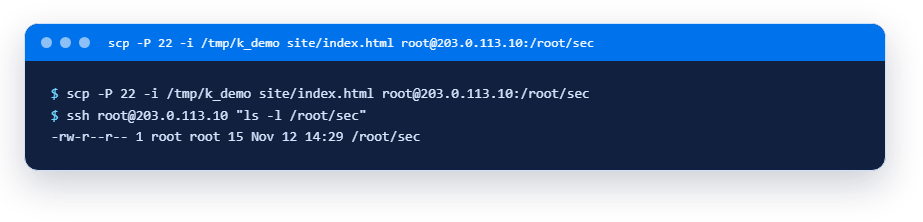
Instead of a folder sec, a file with that name appeared on the server. If you want a folder, create it first, or end the existing path with a slash. By the way: the port is set with -P (capital, unlike ssh -p) and the key file with -i (we had created /tmp/k_demo beforehand and added it to the server).
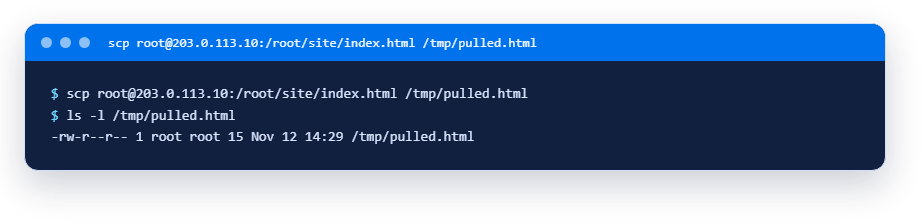
Download a file from the server
Source and destination swap places: the server address now comes first. (A dot as the destination, ., would mean "the current folder".)
What scp does under the hood in new versions
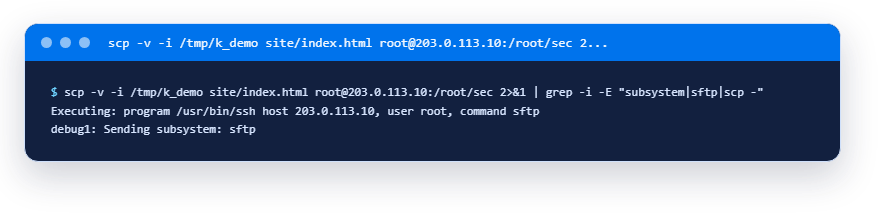
In OpenSSH 9 the scp command works over the SFTP protocol inside, not over the old scp protocol. You can see it in the verbose output (-v). For compatibility with old servers there is the -O flag, which switches the old protocol back on; on our server copying with it produced no errors. For ordinary use you do not need to think about this, but if you meet a strange error with a very old server, try -O.
rsync: syncing, not just copying
scp copies everything again every time. rsync compares the folders and sends only what differs, so it suits regular site uploads or backups better. The flags: -a is archive mode (recursive, keeping permissions, dates and links), -v shows the files, -h prints sizes in human numbers. First run, when the server has nothing yet:
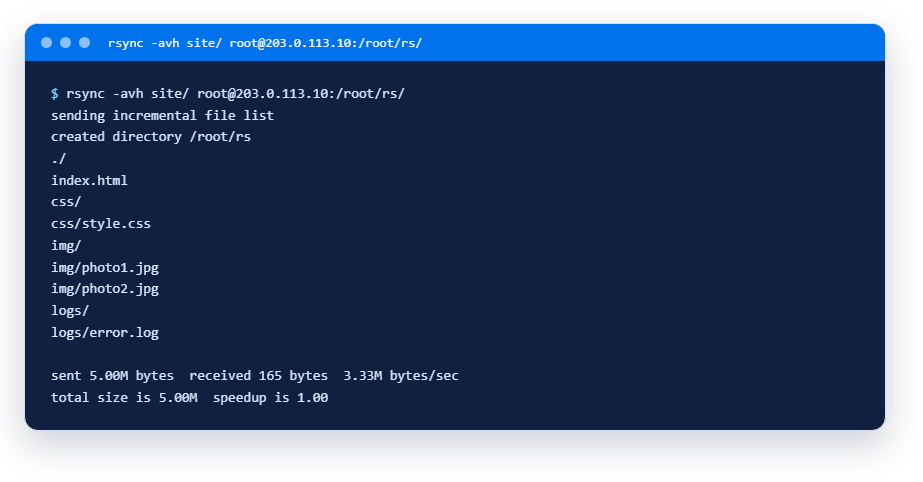
Everything was sent, 5 MB. Now run the same command again, changing nothing:
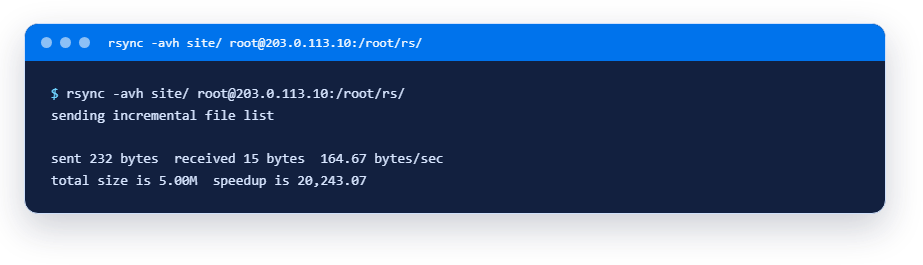
The file list is empty and 232 bytes went out: rsync saw that everything on the server already matches. The speedup value says how many times less was sent than the whole set would weigh.
Dry run and the trailing slash
Let us append a line to the log and look at what rsync is going to do. The -n flag (the same as --dry-run) sends nothing and only shows the plan. Then we run it for real:
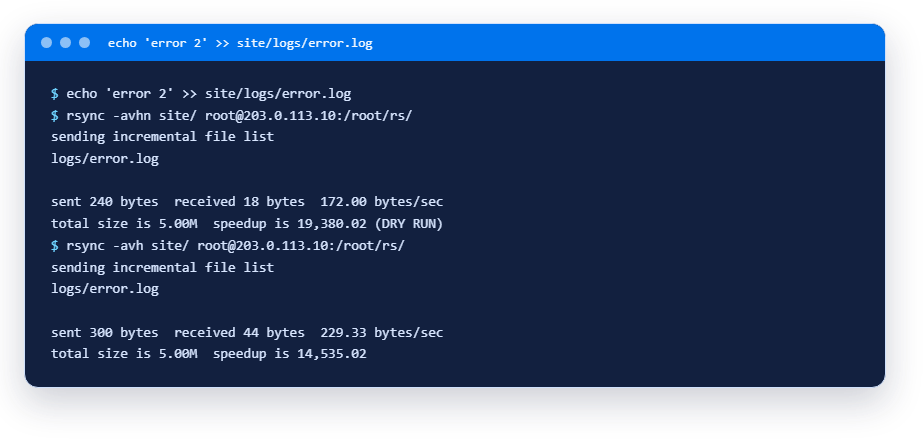
One changed file went over, 300 bytes. Make a habit of running with -n first.
Now the slash, which means much more to rsync than it seems. site/ (with a slash at the end) means "the contents of the folder", and site (without it) means "the folder itself". The results differ, and this is what people mix up most:
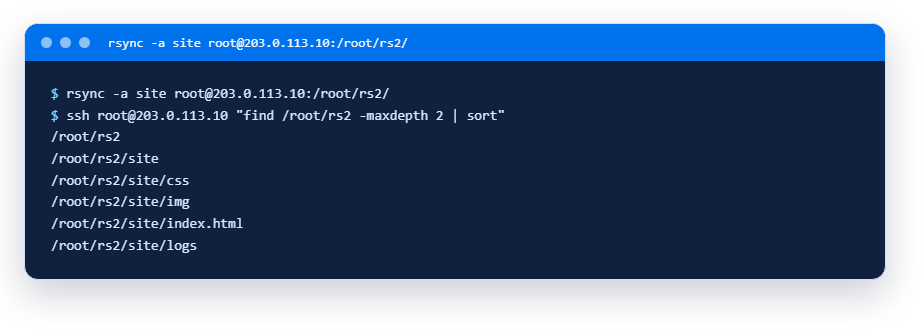
Without the slash, rsync put the whole site folder into rs2, so the path is rs2/site/.... With the slash (as above, into rs/) the files would have gone straight into rs2. For "folder into folder" syncing, use the slash after the source.
Delete extras and skip files
The --delete flag removes on the server whatever no longer exists on your side. It is powerful and dangerous: if you lose the wrong folder locally, you delete it on the server too. So only with a dry run. We deleted css/style.css locally and ran the plan, excluding logs with --exclude at the same time:
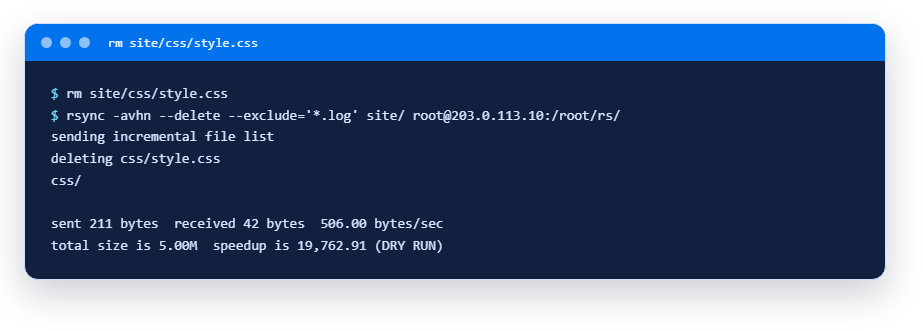
The plan: delete css/style.css on the server (deleting). This was a dry run, so nothing was actually deleted. A note on --exclude: by rsync's rules, files that match it are also shielded on the server from --delete (unless you add --delete-excluded); this run did not exercise that, since error.log still exists locally.
A big file: what rsync saves
To test, we created a 20 MB file, copied it, changed one byte in it and sent it again: first with rsync, then with scp.
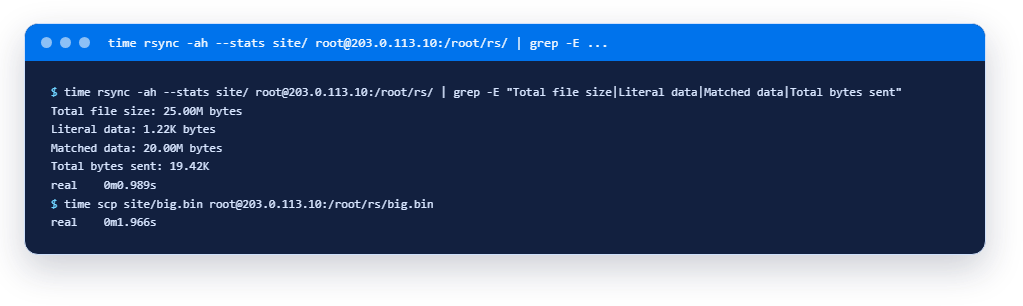
Reading it: rsync found that the 20 MB were already on the server (Matched data), sent only 1.22 KB of new data (Literal data) and about 19 KB in total instead of 20 MB. scp sent the file whole. The times are of the same order here (rsync 1.0 s, scp 2.0 s; another scp run of the same file took 1.3 s), so only the bytes sent differ clearly: about 19 KB against 20 MB. On a slow connection or with gigabyte files the gap in time will be noticeable. Your times and volumes will differ; they depend on the link.
FAQ
How do I copy a file to a server over SSH?
With scp file user@IP:/path/. For a folder add -r. The command asks for the password itself unless key login is set up.
How do I download a file from the server to my computer?
Swap the source and the destination: scp user@IP:/path/file .; the dot means the current folder.
How is rsync different from scp?
scp copies everything you name, every time. rsync compares the source and the destination and sends only the differences, and it can do a dry run and delete extras. For a one-off send scp is enough; for regular syncing rsync is better.
Why the slash after a folder in rsync?
folder/ means "the contents of the folder", folder means "the folder itself". In the first case the files land right in the target folder, in the second inside a nested folder with the same name.
Is --delete safe?
Only after a dry run with -n. The flag deletes on the server everything you no longer have, and a mistake in the path or an empty local folder can wipe out what you need.
Takeaways
scpis for one-off copies,rsyncfor repeated ones and for sending only the changes.- The result of
scp -rdepends on whether the destination folder exists: a copy the first time, a nested folder the next. - A path with no trailing slash that does not exist on the server is read by
scpas a file name. - In
rsyncthe slash after the source decides whether the contents or the folder itself is copied. Before--delete, always run with-n. - The port is
-Pforscpand-pforssh.
Not verified here: the sftp command, Windows clients (WinSCP and scp from PowerShell), permissions and owners when copying, symbolic links, gigabyte volumes. More on the topic: connecting from Windows, connecting from macOS and Linux and securing a fresh VPS.
Read next
- SSH keys for a VPS: how to create one, add it to the server and turn off password loginCreate an SSH key, add it to your VPS, fix Permission denied (publickey) and turn off password login. Output from a live server.11 min11 min
- Out of memory on a VPS: swap and the OOM killer explainedDid the server silently kill your process for lack of memory? How to read the OOM killer log and add a swap file. Output from a live VPS.10 min10 min
- Console, reboot, Rescue mode and OS reinstall: how to save a VPS in WeaselCloudWhat the WeaselCloud panel offers when a server goes silent: reboot, console, Boot log, Rescue mode and reinstall, with a real breakage example.11 min11 min
Didn't find an answer?
The support team will help.