
A database restarted by itself, a bot disappeared, the site returned 502, and the panel still says "Running". If the server did not reboot, there is a good chance it ran out of RAM and the Linux kernel killed the hungriest process. That is not a failure or an attack: it is by design. Below you will see how to spot it in the log, how a swap file helps and how to enable one on a VPS in five minutes. All outputs come from our own WeaselCloud test server: Ubuntu 24.04, 4 GB of memory.
How to tell the OOM killer ended your process
The signs are usually these: a service (MySQL, Redis, a bot, a container) restarted or vanished without your command; the program's own log has no error, it just stops; the server itself is up and did not reboot. To check, open the kernel log: that is where the kernel writes whom it killed and why.
This is what stayed in the log of our server after a real OOM. With no swap we ran a Python script that grabbed 256 MiB at a time until memory ran out:
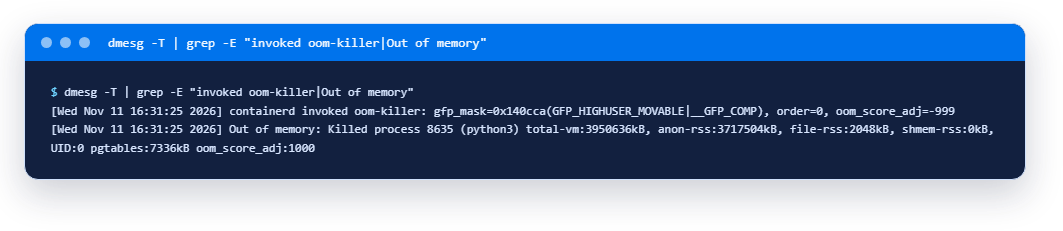
How to read these two lines:
invoked oom-killer— the name before it is the process that needed memory at that moment and found none. It is not necessarily guilty and not necessarily killed: here it happened to be the systemcontainerd, while the victim was a different process.Killed process 8635 (python3)— this is who died: the number and the name. If it is your database or application, you have found the cause.anon-rss:3717504kB— how much physical memory the process held when it died: about 3.5 GiB out of 3.8 GiB, practically everything.oom_score_adj:1000— an adjustment to the "victim score". Normal processes have 0 and the kernel picks whoever ate the most. We set 1000 on our script by hand and protectedsshdwith −1000, so the experiment would not cut our own connection. On your live server the kernel's own scoring decides.
The same trace is visible through journalctl -k -g "Out of memory". It is handy when the dmesg output is long: -g filters the lines you need straight away.
What swap is and why it helps
Picture a desk (RAM) and a cabinet next to it (disk). The desk is fast but small. When the papers do not fit, you can put some in the cabinet until you need them. That is swap. The kernel decides what to move out: memory pages nobody has touched for a while. If the peak is short (a build, a backup, a burst of requests), the server survives it instead of killing a process. An important caveat: the cabinet is many times slower than the desk. Swap adds no power and should not be in constant heavy use. Its job is insurance against sudden death, not a permanent substitute for memory.
Step 1. Check that there is no swap yet
First, see how the server looks now. free -h shows memory and swap in readable units, swapon --show lists active swap areas, and /proc/sys/vm/swappiness holds the setting for how eagerly the kernel uses swap (more below).
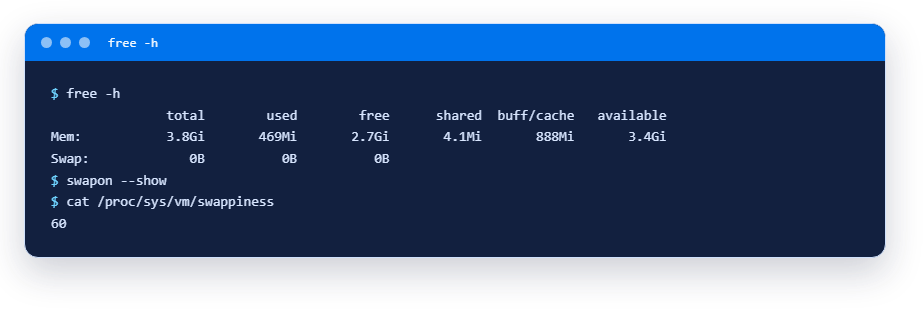
What you see: the Swap row is zeros and swapon --show printed nothing, so there is no swap. This is the normal state of a new VPS on our Ubuntu 24.04 image. The default swappiness is 60.
Step 2. Create a swap file
We need a file on disk that the system will treat as swap. We make it 2 GB: with 4 GB of memory that is a sensible reserve, and it also works for a 2 GB server (a rule of thumb, not a law; if you need more, think about a bigger plan instead). The order is: reserve space, lock the permissions, mark it as swap, turn it on.
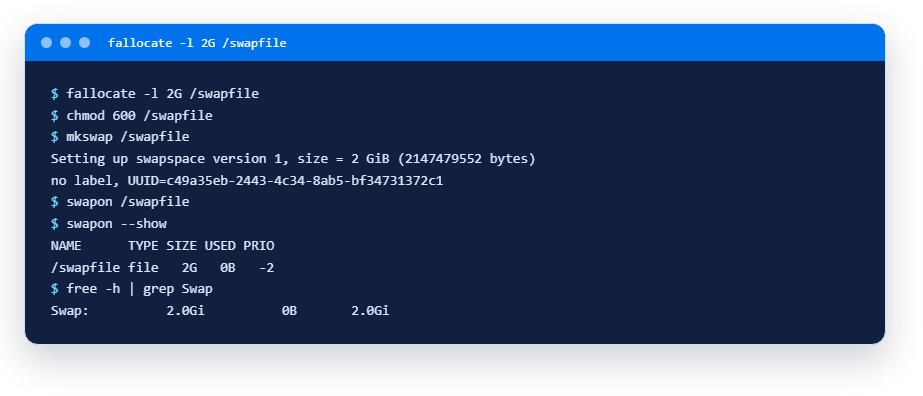
The commands, line by line:
fallocate -l 2G /swapfile— instantly reserves 2 GB for a file in the root of the disk. If it complains (some file systems do not support it), a slower fallback works everywhere:dd if=/dev/zero of=/swapfile bs=1M count=2048. Our file system is ext4, wherefallocateworked at once.chmod 600 /swapfile— only root can read and write the file. This is not a formality: swap holds data from process memory, including passwords and keys. If you skip this step, the system warnsinsecure permissions 0644, 0600 suggested(we tested it on purpose: swap still turns on, but you must not leave it like that).mkswap— writes a service mark into the file saying "this is a swap area".swapon— turns it on.USEDis0Bfor now: swap is connected and waiting for load.PRIO -2is the priority; it does not matter with a single file.
Step 3. Keep swap after a reboot
swapon works until the next reboot. To make the system enable the file at every start, add it to /etc/fstab, the table of what to attach at boot. Let us also lower swappiness — a number that tells the kernel how eagerly to move memory out to swap: the lower it is, the later the kernel resorts to swap. The default is 60; for servers with databases and applications people often set 10 so swap is a reserve, not the first move.
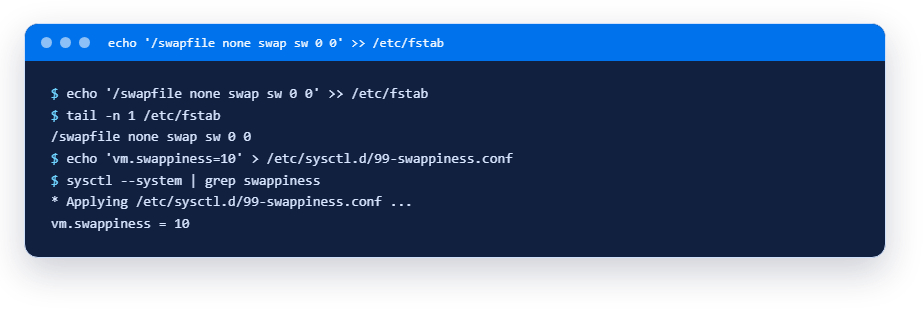
The first command appends a line to the end of /etc/fstab: "file /swapfile, no mount point needed (none), type swap". Be careful: append with exactly two >>. A single > overwrites the whole file and the server may fail to boot (you would then need Rescue mode). The second half saves swappiness to a separate file that is read at every start.
We checked the reboot too: after systemctl reboot the server came back, swapon --show listed the 2 GB /swapfile and sysctl vm.swappiness returned 10. Nothing had to be enabled by hand.
What swap gives you in practice
Now let us repeat what killed the process earlier, but with swap on. The script grabbed memory in 256 MiB pieces until it held 4352 MiB, more than all of the server's RAM (3.8 GiB). This is the state at the peak:
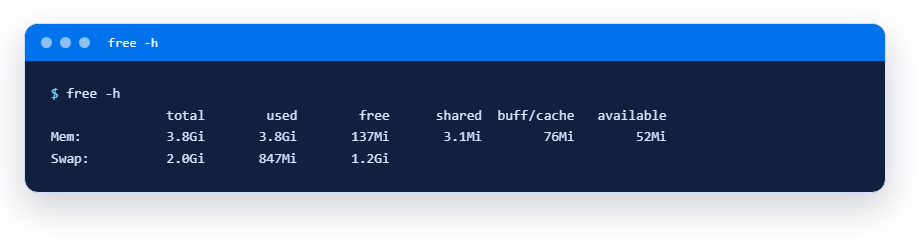
What you see: memory is packed full (available is only 52 MiB), yet this time the process was not killed: 847 MiB went to swap and the script ran to the end. For comparison, without swap a similar script was killed at about 3.5 GiB. After the script exited the server was back to normal: 5.6 MiB left in swap, 3.5 GiB free.
Note the price: when available is near zero and swap is busy reading and writing, the server slows down noticeably. That is a sign that memory is really insufficient. If it keeps happening, grow the plan, not the swap.
A safe way to try it yourself
Do not reproduce a 4 GiB load on a working server: you can stop your own services. There is a gentler way — limit the memory of a single command with systemd-run. Then the OOM killer acts only inside that command and leaves the rest of the server alone. Here is our test: a 300 MiB limit, swap forbidden for the command, a script that tries to take 1 GiB:
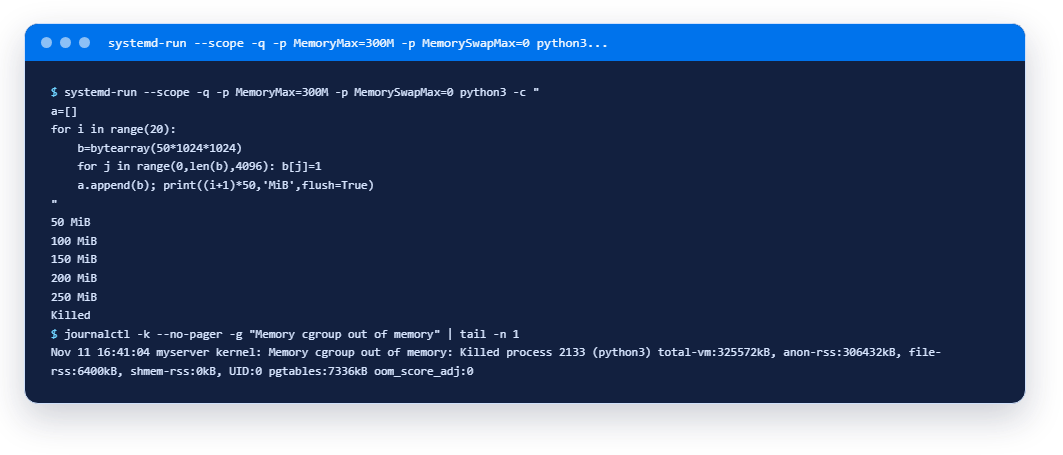
What you see: at 250 MiB the script hit the 300 MiB limit and was killed. The journal line starts with Memory cgroup out of memory — the same mechanism, but inside a limited group. The rest of the server did not notice. That way you can show yourself the symptom without risking production.
How to remove swap
If you do not need swap or want to change its size, undo the steps in reverse: turn it off first, then delete the line from /etc/fstab, then the file. You cannot delete the file while swap is on, so swapoff comes first.
swapoff /swapfile
sed -i '\#^/swapfile #d' /etc/fstab
rm /swapfile
rm /etc/sysctl.d/99-swappiness.conf
sysctl -w vm.swappiness=60
After that swapon --show is empty again and grep swap /etc/fstab finds nothing (the last line of the block resets swappiness, otherwise it stays 10 until a reboot) — we checked, and the server returned to its original state.
What to do if memory is short all the time
- Find who uses the memory.
free -hgives the overall picture, andps aux --sort=-%mem | headlists the hungriest processes. Often the culprit is not the server but one service with unlucky settings (for example, a database with a huge buffer). - Add swap as described above, as insurance against sudden process deaths.
- Change your plan if the load is steadily above your memory. How to do it in the client area is in "How to change your VPS plan".
- If the server hangs and does not answer because of the lack of memory and SSH is silent: open the console or press Soft reboot, then Hard reboot. The order is described in the console and Rescue mode article.
Frequently asked questions
Do I need swap if I have enough memory?
Not necessarily, but the insurance costs almost nothing: 2 GB of disk saves you from a sudden process kill when 4 GB of memory is full. If you run databases, containers or builds, we would add it.
Will swap speed up the server?
No. It only keeps the server from failing when memory runs out. The disk is slower than memory, so constant swapping slows everything down.
Can swap be a separate partition instead of a file?
It can, but on a VPS a file is simpler: no need to repartition the disk, the size is easy to change (turn off, recreate, turn on), and it works the same way.
What size should I pick?
A common rule for servers with 2-4 GB of memory is 1-2 GB of swap. We used 2 GB with 4 GB of RAM. More does not help if your processes truly need more memory: swap only delays the problem.
Which swappiness value is best?
The default is 60. For servers people often set 10: the kernel uses swap as a reserve, not as the first move. There is no single "right" number: watch your load.
What if the server does not boot after an OOM?
Most often it does boot and you just need to start the process again. If SSH does not answer, use the console and Rescue mode.
Read next
- How to copy files to a VPS and back: scp and rsyncscp for one-off copies, rsync for repeated ones: syntax, destination and trailing-slash traps, dry runs. Output from a live VPS.8 min8 min
- SSH keys for a VPS: how to create one, add it to the server and turn off password loginCreate an SSH key, add it to your VPS, fix Permission denied (publickey) and turn off password login. Output from a live server.11 min11 min
- Console, reboot, Rescue mode and OS reinstall: how to save a VPS in WeaselCloudWhat the WeaselCloud panel offers when a server goes silent: reboot, console, Boot log, Rescue mode and reinstall, with a real breakage example.11 min11 min
Didn't find an answer?
The support team will help.