
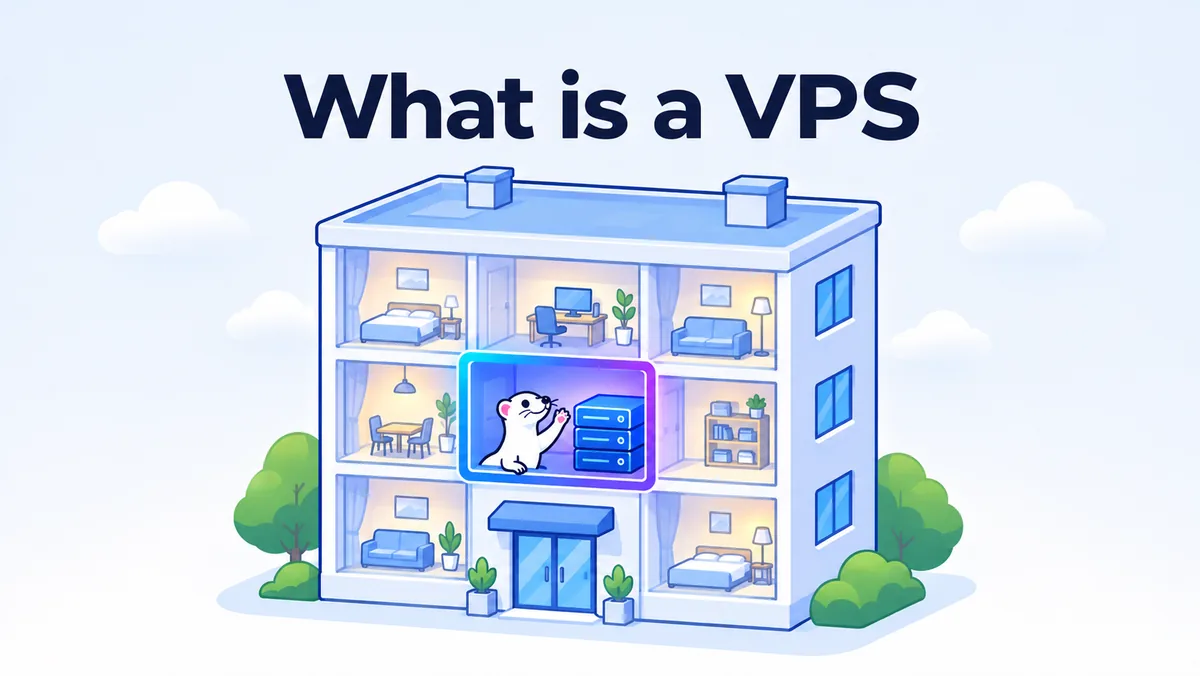
A VPS is your own "flat" inside a powerful computer in a data center. It has its own Linux, its own IP address and full administrator rights, and your data is separated from the neighbours on the same hardware. Below you will find a simple analogy, diagrams and real numbers from a working server: we logged in over SSH and looked at what a VPS is actually made of.
What a VPS is, in plain words
Picture three ways to live in a city. You can rent a room in a shared flat: the kitchen, the bathroom and the fridge are common, you cannot repaint the walls, and a neighbour with loud music is heard by everyone. That is ordinary shared hosting. You can rent your own flat in an apartment building: your own lock, your own furniture, any decoration you like, while the building and the lift are shared. That is a VPS. Or you can buy a whole house: everything is yours, and it costs a lot more. That is a dedicated server.
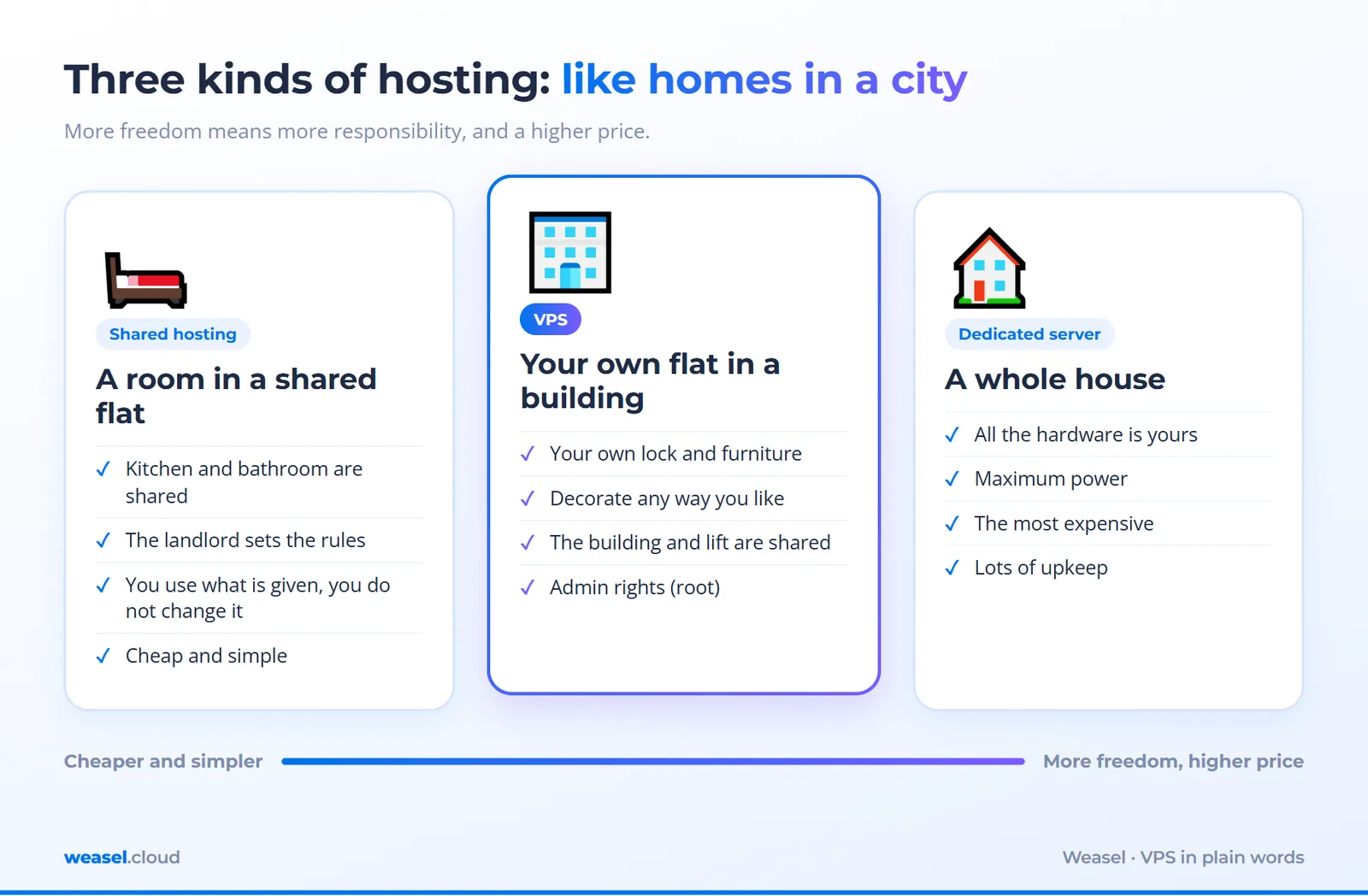
The key word here is "isolation". On a VPS your programs and files are separated from other customers, and the operating system is yours alone. That is why you can get root rights (the main administrator, who can do anything on the system), install the exact version of Python or a database you need, open your own ports and reboot the server whenever you like. Ordinary hosting offers none of that: there you work inside whatever the host has set up.
How a VPS works inside
In a data center there is a big physical server: for example, dozens of processor cores, hundreds of gigabytes of memory, fast disks. If one customer got all of it, most of the power would sit idle. So the server runs a program called a hypervisor. Its job is to cut the hardware into parts and hand each one out as a separate computer. Linux has a built-in technology for this called KVM: every such "part" sees its own cores, its own memory and its own disk and behaves like a real computer onto which you can install any system.
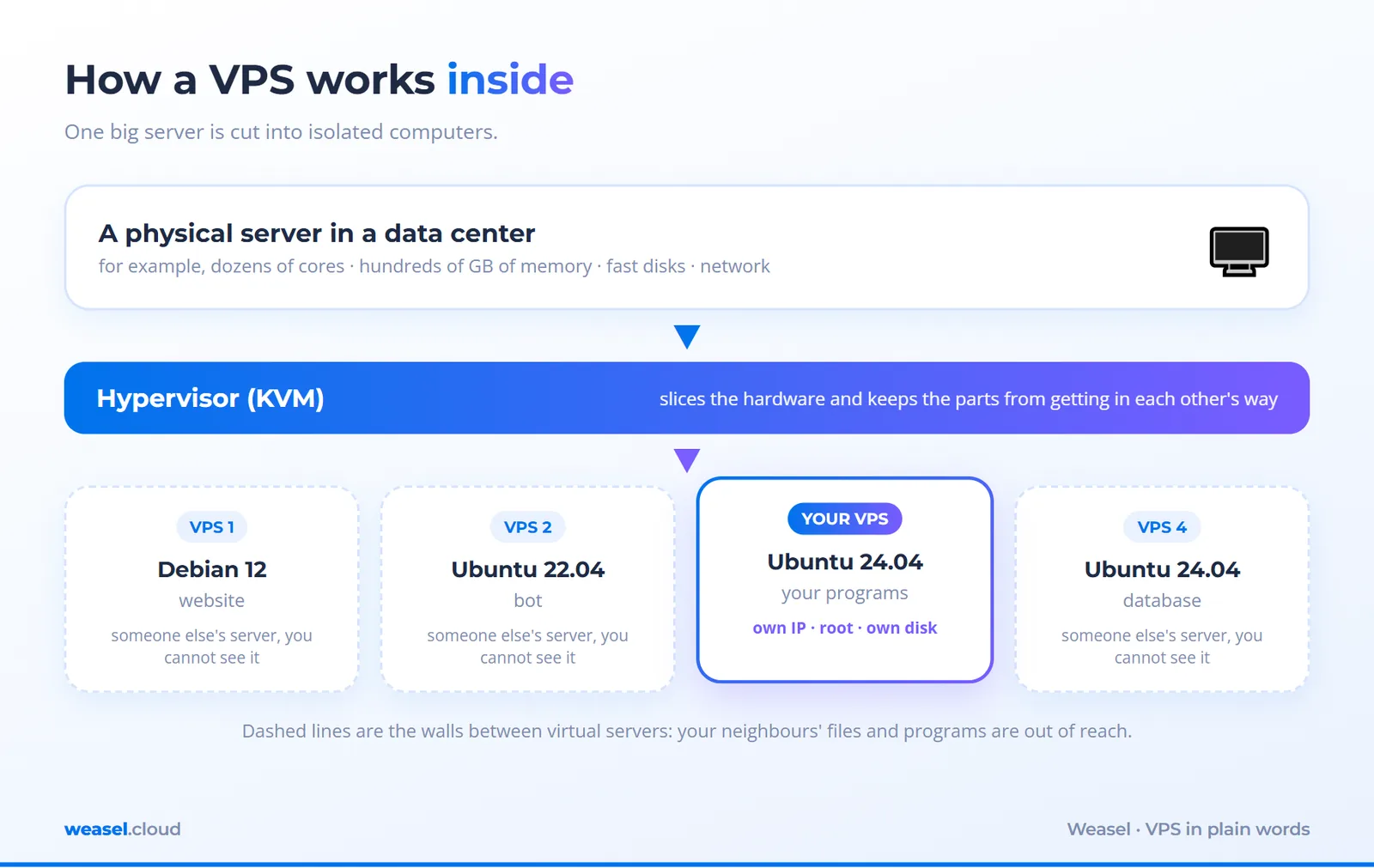
The diagram shows the main point: neighbouring virtual servers do not see each other and share no files. They share only the physical "box" underneath. We covered the types of virtualization (KVM and the outdated OpenVZ) in the article KVM or OpenVZ.
What a VPS is made of: cores, memory, disk and network
In the description of any plan you will see four values. The easiest way to understand them is a restaurant kitchen.
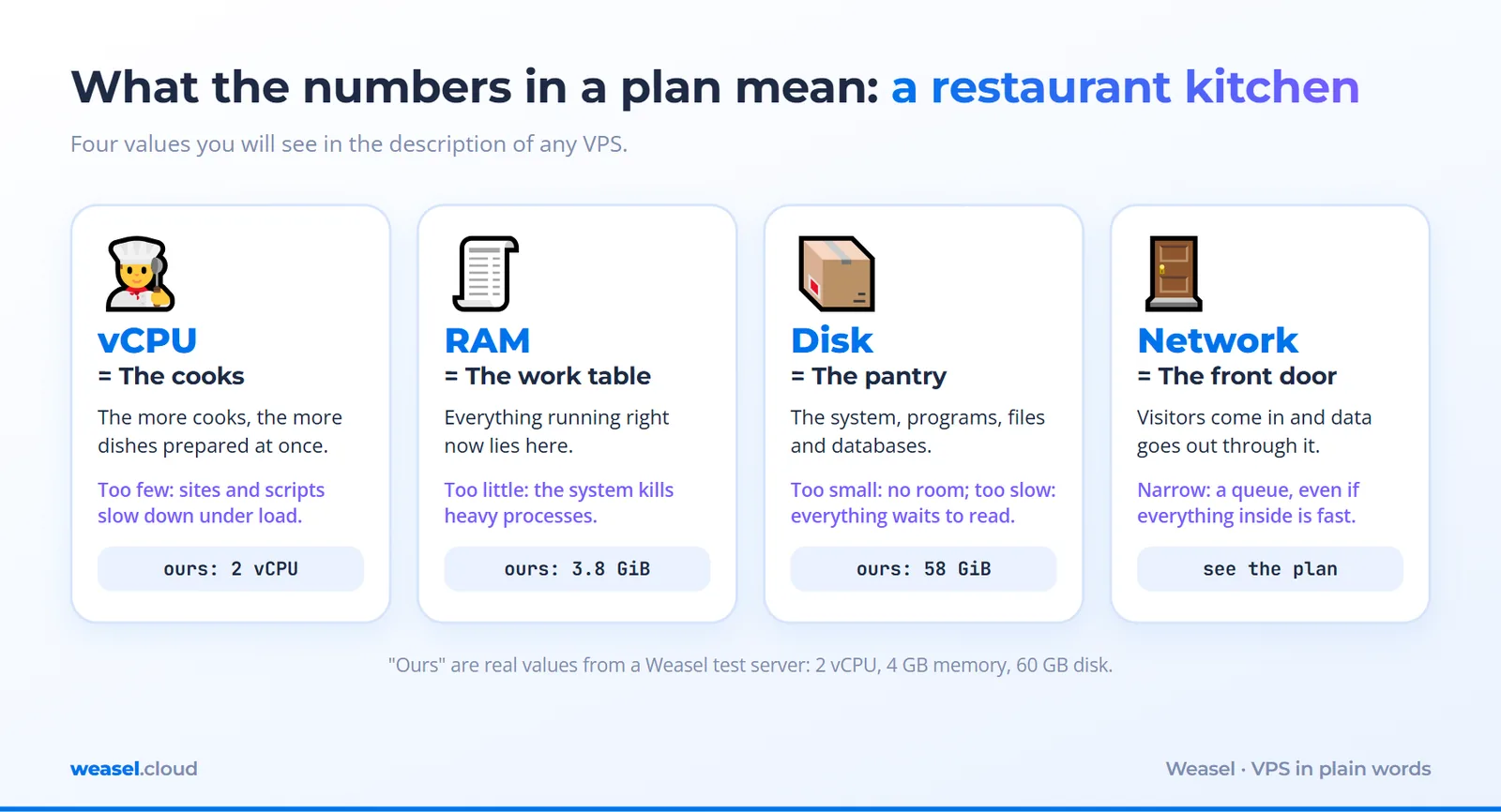
- vCPU (virtual processor cores) are the cooks. The more of them there are, the more dishes get prepared at once. One or two are enough for a site with modest traffic.
- RAM (memory) is the cook's work table. Everything running right now lies on it. When there is no room, part of it has to go back to the pantry and work slows down, and sometimes the system simply kills the heaviest process.
- Disk is the pantry. It holds the system, programs, files and databases. Disk speed matters as much as size: more in NVMe, SSD or HDD.
- Network is the front door. Visitors come in and ready dishes go out through it. A narrow door means a queue, even if the kitchen is fast.
How much of each you need depends on the job. To count rather than guess, read "How much CPU and RAM does a server need".
What you get after ordering
Ordering a VPS is easier than it sounds. You pick the data center country, the size and the operating system, pay, and the server starts. After that it looks like this.
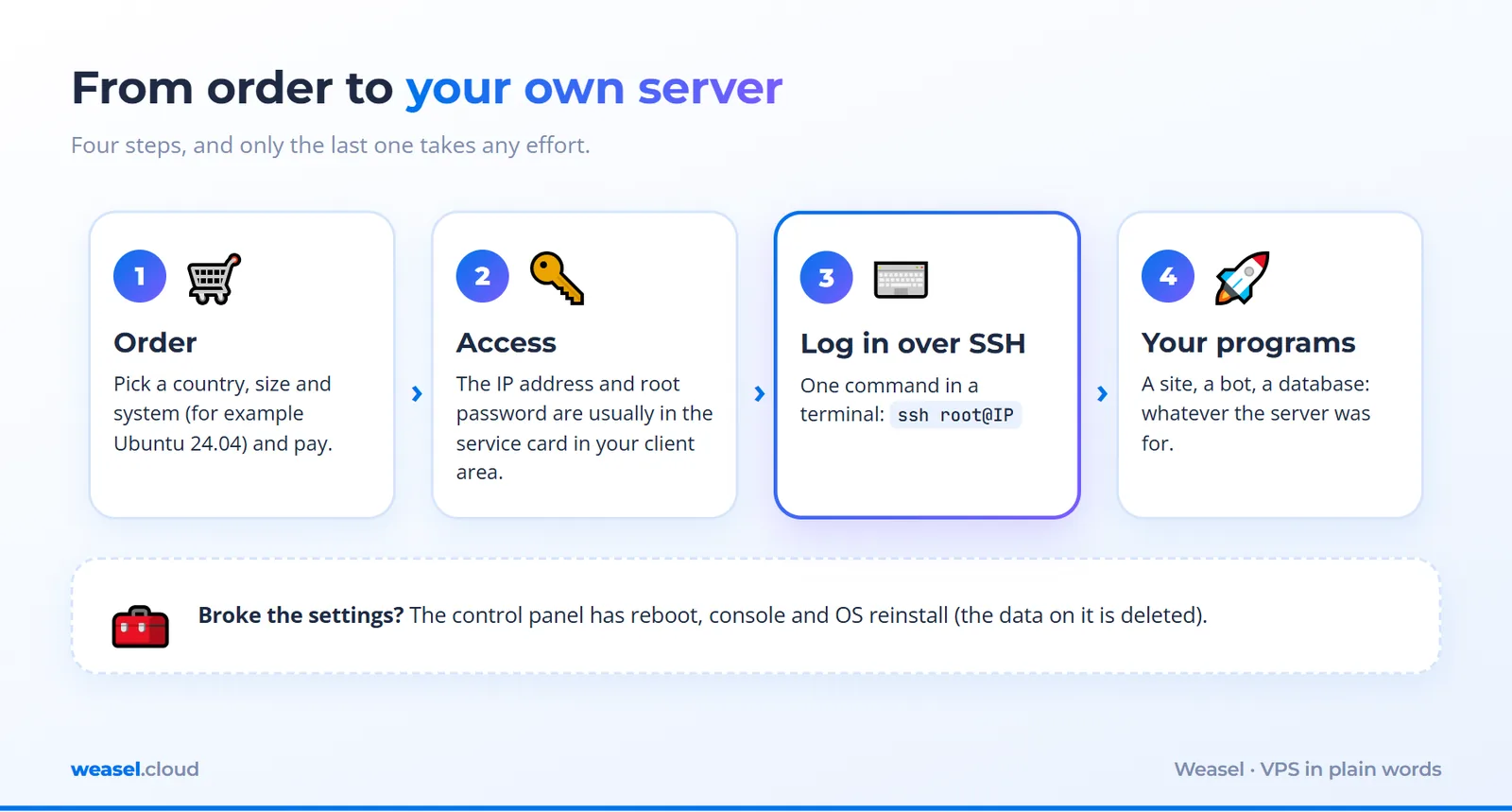
- Login details. The server address (IP) and the root password are usually in the service card in your client area. More in the guide "How to order your first VPS".
- Connecting. You log in to the server over SSH, a protected "remote control" through a terminal. How to do it from Windows and from macOS and Linux is described separately.
- First setup. Update the system, create your own user, turn on a firewall. It usually does not take long: "Securing your first VPS".
- Your programs. A site, a bot, a database: whatever the server was for.
If something goes wrong, the control panel has reboot, console and OS reinstall. You can reinstall the system and start over (the data on it is deleted).
A look inside a real VPS
Explaining it in theory is easy, so we checked in practice. We took an ordinary Weasel server with Ubuntu 24.04 (2 vCPU, 4 GB of memory, 60 GB of disk), logged in over SSH and ran a few commands. They only read information and change nothing, so you can repeat them on your own server. The result is gathered in one diagram.
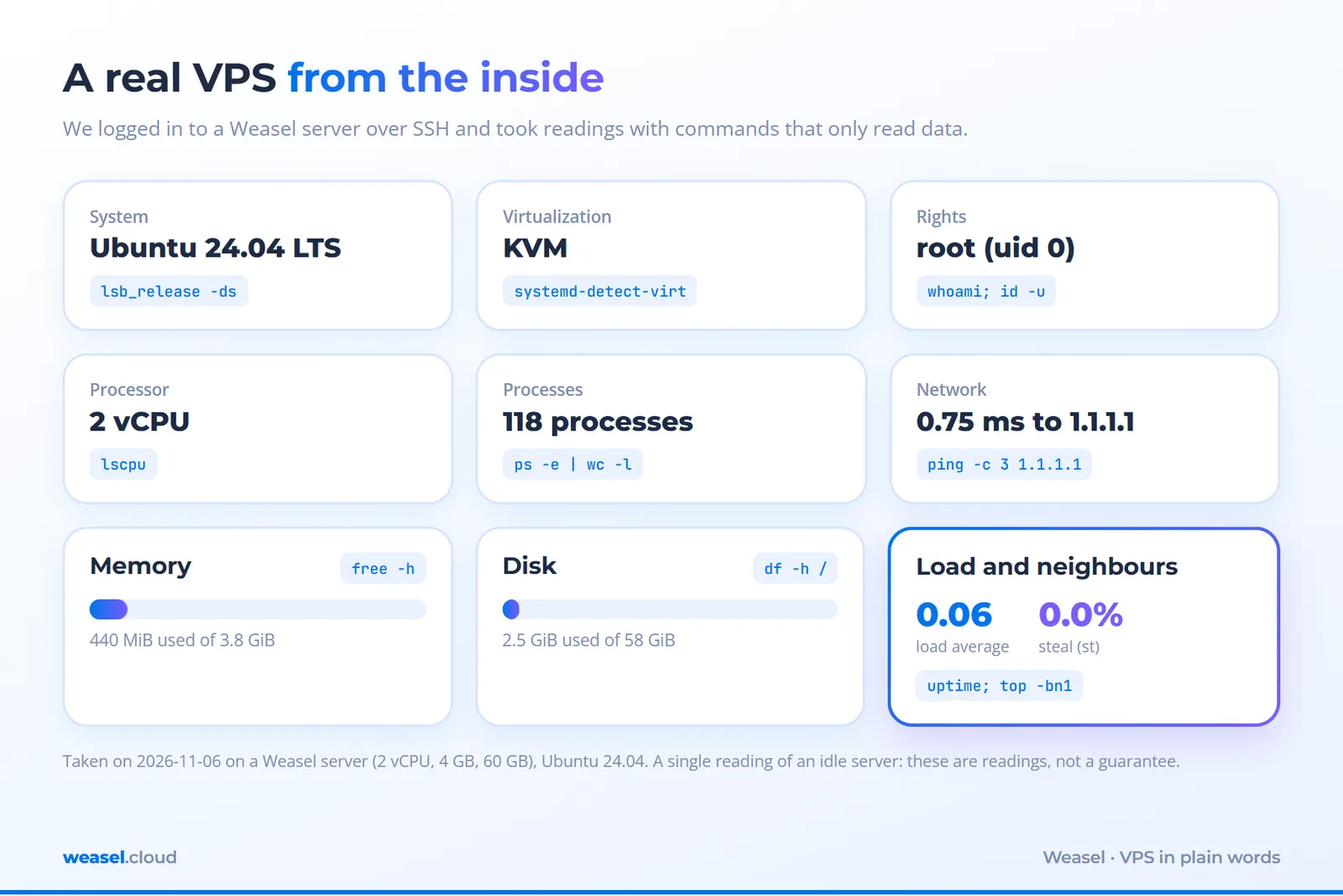
Now let us see how we got it. First we find out which technology the virtualization is built on:
systemd-detect-virt
The command asks the system whether it runs inside a virtual machine, and which kind. The answer:
kvm
That is the same KVM as in the diagram above. Now the processor:
lscpu | grep -E "^(Architecture|CPU\(s\)|Thread|Core|Socket|Hypervisor vendor|Virtualization type)"
lscpu prints processor details, and grep keeps only the lines we need. We left out the processor model. We saw:
Architecture:                            x86_64
CPU(s):                                  2
Thread(s) per core:                      1
Core(s) per socket:                      1
Socket(s):                               2
Hypervisor vendor:                       KVM
Virtualization type:                     full
Two lines matter here. CPU(s): 2 is the two vCPUs of the plan. Hypervisor vendor: KVM is the system itself reporting that it runs under a hypervisor. The odd "2 sockets of 1 core" is just how the hypervisor draws two virtual processors; a VPS has no physical sockets.
Next, memory and disk:
free -h
df -h /
free -h shows memory in readable units (gigabytes), and df -h / shows space on the main disk. We got:
               total        used        free      shared  buff/cache   available
Mem:           3.8Gi       440Mi       3.2Gi       4.1Mi       452Mi       3.4Gi
Swap:             0B          0B          0B

Filesystem      Size  Used Avail Use% Mounted on
/dev/sda1        58G  2.5G   55G   5% /
Of 4 GiB of memory, 3.8 GiB is visible: part is reserved by the kernel and firmware, which is normal on any server. The 60 GiB disk shows as 58 GiB on the partition: part goes to partitioning and filesystem metadata. The system and programs use only 2.5 GiB, so almost all of the space is yours. The line Swap: 0B means there is no swap file: when memory runs out, there is no spare room on disk and the system kills the heaviest process, so keep an eye on memory.
One question remains: how busy is the server, and do the neighbours get in the way?
uptime
top -bn1 | sed -n 1,5p
uptime shows how long the server has been running and its average load, and top gives a summary of processor and memory. We are interested in the line with percentages:
 18:15:22 up  1:50,  1 user,  load average: 0.06, 0.03, 0.01

%Cpu(s):  0.0 us,  0.0 sy,  0.0 ni,100.0 id,  0.0 wa,  0.0 hi,  0.0 si,  0.0 st
The three load average numbers are the average load over 1, 5 and 15 minutes; on a two-core server a value around 2 would mean both cores are busy, and ours is 0.06, so the server is resting. The st field (steal) is the share of time your virtual core waited for the hypervisor to give it a physical one. If it is constantly high, the neighbours take too much. Ours is 0.0, but that is a single reading of an idle server, not a guarantee for all the time you run it.
And last, the network:
ping -c 3 -q 1.1.1.1 | tail -2
3 packets transmitted, 3 received, 0% packet loss, time 2034ms
rtt min/avg/max/mdev = 0.554/0.749/1.040/0.209 ms
Three requests to a public DNS server, three replies, no loss, and an average delay under a millisecond (0.749 ms). That is what a server connected to the fast network of a data center looks like.
One more finding that confuses beginners. If you ask the system whether the disk spins (lsblk -d -o NAME,SIZE,ROTA,TYPE), on our server it answers ROTA 1, meaning "yes, this is a spinning hard disk". Do not believe it: a virtual disk simply calls itself that. Only a measurement shows the real speed. In our check of this same server the disk delivered about 74 thousand random read operations per second (small blocks, deep queue), while a hard disk with spinning platters usually manages in the order of hundreds. We covered how to measure in the article about disks.
What you can run on a VPS
The short answer: anything that should work around the clock and not depend on your laptop.
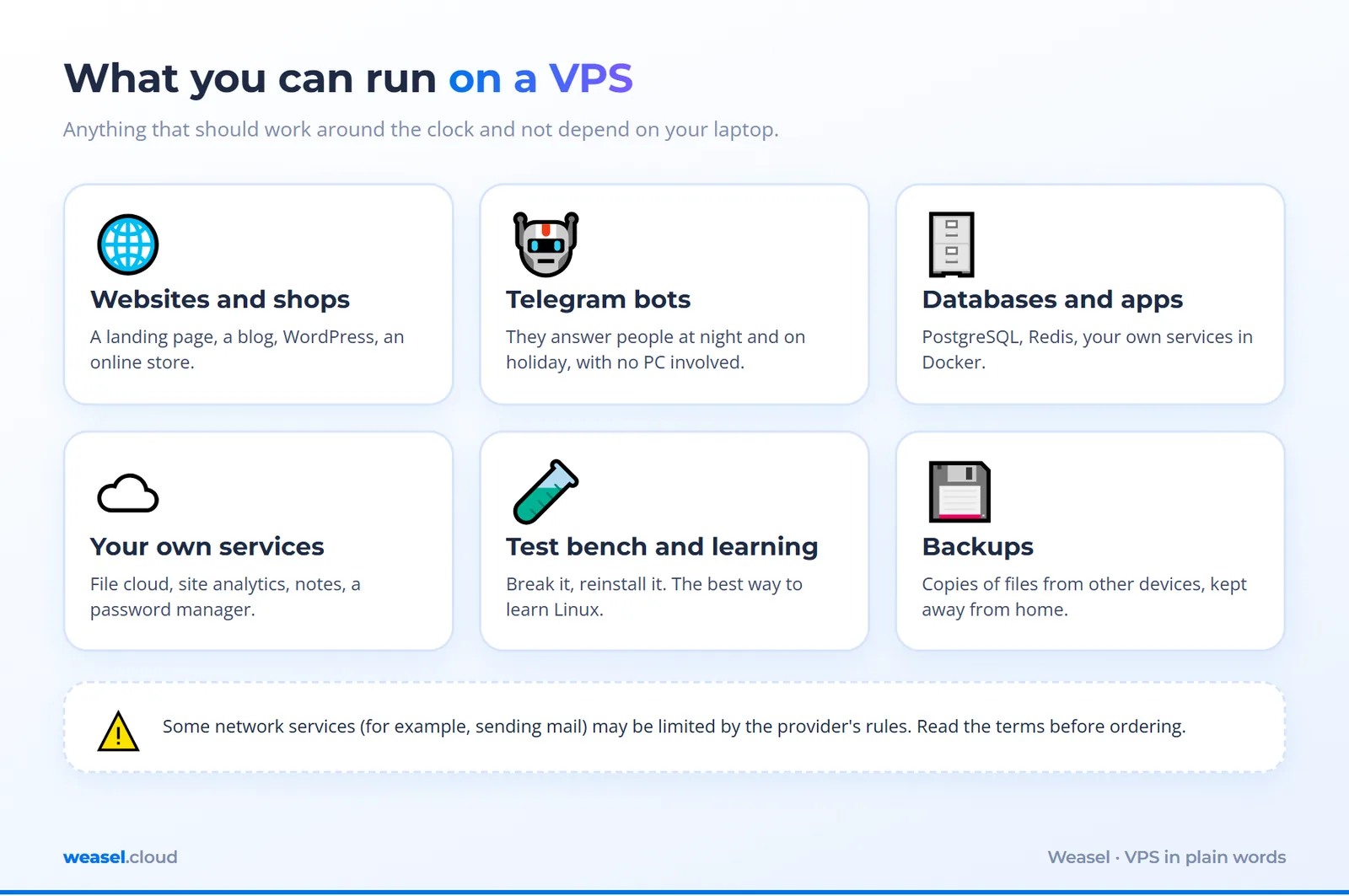
- Websites and online shops. From a simple landing page to a WordPress project. If you do not want to set everything up by hand, install a free panel: HestiaCP.
- Telegram bots and scripts. A bot on your computer sleeps when you close the lid. On a VPS it answers people at night and while you are on holiday.
- Databases and applications. PostgreSQL, Redis, your own services in Docker containers.
- Your own services instead of someone else's. A file cloud, site analytics (Umami or Plausible), notes, a password manager.
- A test bench and learning. Break it, reinstall, start again. The best way to learn Linux without fear of damaging anything.
- Backups. Copies of files from other devices, covered in the guide "Back up your VPS yourself".
Do not expect that anything at all will work on a VPS. The provider may limit some network services (for example, sending mail), and the terms of use should be read before ordering.
What a VPS does not do for you
Freedom has a price: on a VPS you are your own system administrator. The host looks after the hardware, the network and the electricity. The rest is on you.
- Updates. The system and programs will not update themselves. A forgotten server with old software is a common reason for break-ins.
- Protection. The root password, a firewall, key login and protection against password guessing are set up by hand. The first steps are collected in this guide.
- Backups. If you delete a file or break the settings, the server will not roll back by itself. You have to make copies yourself.
- Troubleshooting. If a site does not open, you look for the cause. You can start with "Common Linux server problems".
If you do not want to administer anything at all, ordinary hosting with a ready panel can be the right choice. That is fine; not everyone needs a server of their own.
VPS, shared hosting or dedicated server: which to choose
| Criterion | Shared hosting | VPS | Dedicated server |
|---|---|---|---|
| Who sets up the system | The host, you get only a panel | You | You |
| Root rights | Usually no | Yes | Yes |
| Own IP address | Often shared | Yes | Yes |
| Resources | Shared, with no clear guarantee | A dedicated share, depends on the plan | The whole server |
| Your own software and versions | Only what is offered | Anything | Anything |
| Price | Lowest | Middle | Highest |
| Who it suits | A simple site with no administration | Projects, bots, applications, learning | Very high load, special hardware needs |
For the differences between a VPS, a VDS, a cloud server and a dedicated server, read "VPS, VDS, cloud and dedicated server", and to pick the right option for your job, see "How to choose a VPS".
FAQ
How is a VPS different from a VDS?
In practice they are the same thing: a virtual server with root rights. The name VDS took hold in Russian-speaking markets, VPS is the international one. Differences only appear in a particular provider's marketing, so look at the specifications, not the abbreviation.
Do I need to know how to program to use a VPS?
No programming is needed. You need to be able to connect over SSH and type commands from a guide. That is enough to install a site, a panel or a bot. The rest you pick up along the way.
What happens if I break the server?
Nothing terrible: the panel lets you reinstall the system and start from scratch. That is why a VPS is good for learning. The data on it will be gone, so keep anything important in backups.
How is a VPS different from a cloud server?
Technically a cloud server is also a virtual machine. The difference is in how a particular provider manages resources and billing; the details are in the comparison of server types.
How many resources does a first VPS need?
For a small site, a bot or learning, the smallest plans are usually enough. For an exact calculation for your job, see the article on CPU and RAM. If resources fall short, you can change the plan.
Is my data safe on a VPS?
As safe as you make it. The host is responsible for the hardware and the network, and you are responsible for access to the system. With basic setup, regular updates and backups, a VPS is safe for most jobs.
Takeaways
- A VPS is a virtual server in a data center: a slice of a big physical server handed to you as a separate computer.
- It works through a hypervisor (KVM in our case): the system itself sees that it runs "inside a virtual machine", and you can check it with
systemd-detect-virt. - A plan is vCPU, memory, disk and network. For a first project, small values are usually enough.
- You get root rights and the freedom to install anything, but updates, protection and backups are your area.
- Need only a simple site with no administration: take hosting. Need your own programs and control: a VPS. Need the whole hardware: a dedicated server.
What's next
If you decided to try, start with the guide "How to order your first VPS", connect over SSH from Windows or macOS and Linux, and go straight on to basic protection.
Read next
Administration18 November 2026
What is an LLM in plain words, and do you need your own VPS for one
Network9 November 2026
How to choose a VPS country for AI tools: ChatGPT, Claude, Gemini and APIs
Network4 November 2026
What Is a DNS Server: How DNS Works, How to Check It and What to Do When It Does Not Respond
Deploy a server in 1 minute
Choose a location and a plan in the client area. The server starts automatically after payment.