
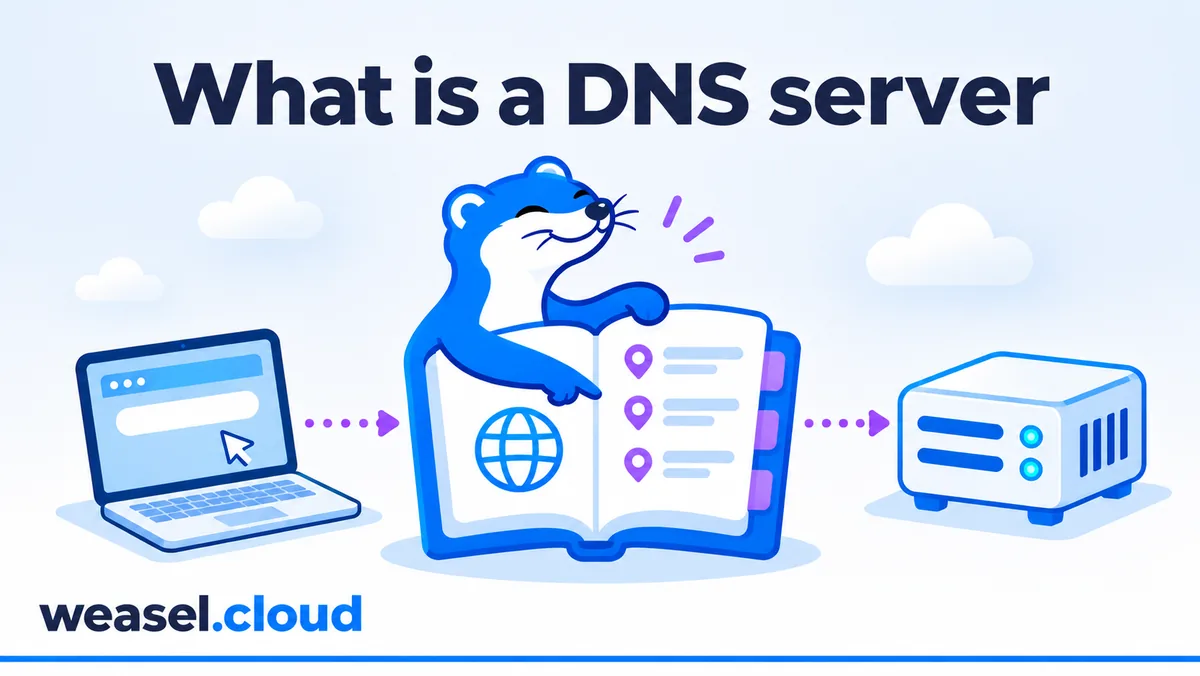
You type a site address into the browser and the page opens. Between those two events a short conversation takes place, and it is called DNS. When it breaks, a site "cannot be found" even though the server is alive. This article explains what a DNS server is, how a lookup travels from your command to the answer, and how to read the output of dig. We ran every command on 4 November 2026 on a real Weasel test VPS (the Netherlands, Ubuntu 24.04). The outputs are real: where we shortened one, we say so next to it. The examples use the domain weasel.cloud, our own site.
What DNS is and why you need it
Computers find each other by numbers: 188.114.96.0 is an address. People do not remember numbers well, so sites have names such as weasel.cloud. DNS (Domain Name System) is a directory that returns numbers and other data for a name. It works like a phone book: you know who you are looking for, and the book gives you the number.
A DNS server is a program that answers such questions. There are many servers, each with its own role. On an ordinary VPS you meet three kinds:
- Resolver (recursive server). Takes a question from your program and finds the answer itself. Your server talks to it every time a name needs to be found. It is often shared by many clients and remembers answers.
- Authoritative server. Holds the real records of a specific domain and answers "as is". It knows only its own data: the servers of
weasel.cloudwill tell you nothing about someone else's site. - Root servers. Sit at the start of the chain and know only who is responsible for each top-level zone (
.cloud,.com,.ruand so on).
Why a VPS owner should care. When a site or mail "does not work", the first useful step is to find where exactly the chain broke: the name is not found, the wrong address is returned, or the address is right but nothing connects. DNS is the first of these checks and the fastest one.
How a lookup works: from the command to the answer
Say you run curl https://weasel.cloud on the server. Here is what happens, step by step:
- The program asks the system to find the address. The system looks into the file
/etc/hosts, then turns to the configured DNS. - On Ubuntu 24.04 that is a local "middleman" at the address
127.0.0.53. It belongs to thesystemd-resolvedservice, keeps answers in memory and forwards questions further. - The middleman asks the real resolvers from its list. They check their cache. If there is no answer, they go to a root server, then to the zone server (
.cloud), then to the domain's authoritative server. - The answer comes back along the same chain and is remembered on the way for the time the domain owner set. That time is called TTL.
Let us see who our test server asks. The command resolvectl status shows the settings of systemd-resolved. We limited the output to one network interface (ens3) and the first eight lines.
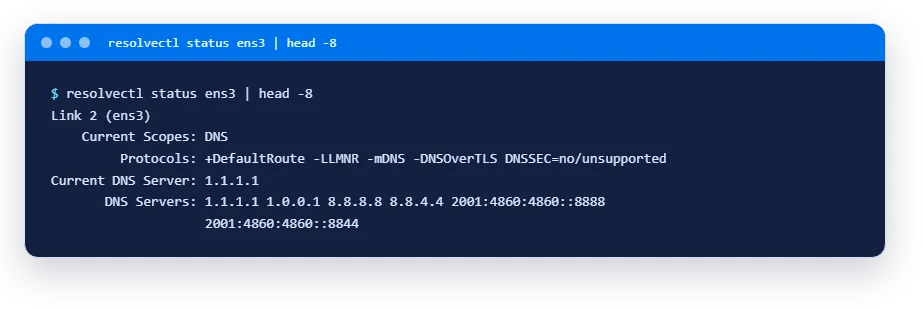
How to read it. Current DNS Server is the one that gets the questions right now. DNS Servers is the whole list in order: if the first one does not answer, the system tries the next. These are public resolvers (addresses like 1.1.1.1 and 8.8.8.8), and this is the setting of this particular server: yours may differ. DNSSEC=no/unsupported means signature checking of DNS answers is not enabled here, which does not affect an ordinary website.
And what do the programs see? They read the file /etc/resolv.conf. We show only the meaningful lines.
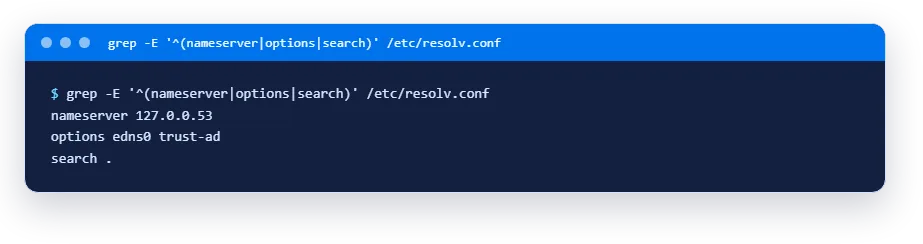
Programs do not talk to the public resolvers directly. They talk to the middleman at 127.0.0.53. Let us check that it really listens on port 53, the standard DNS port:
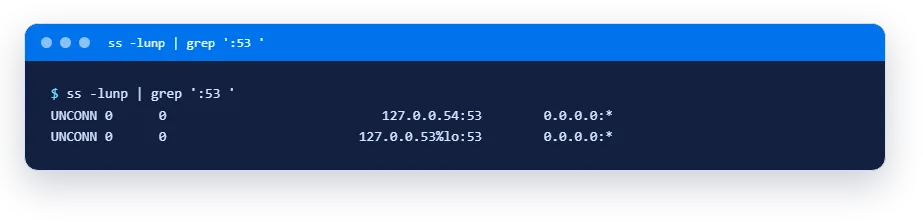
The command ss -lunp lists ports that programs listen on over UDP (-u). The addresses 127.0.0.53 and 127.0.0.54 are reachable only from inside the server, not from the internet.
Record types: what DNS stores
DNS stores more than addresses. One record is one line of the form "name, type, value". These are the types you need:
| Type | What it stores | When you need it |
|---|---|---|
| A | IPv4 address of a site | So the site opens by name |
| AAAA | IPv6 address of a site | If the server has IPv6 |
| CNAME | "This name is an alias of another" | When www must lead where the main domain leads |
| NS | Which servers are responsible for the domain | When you change the DNS host of a domain |
| MX | Where to deliver the domain's mail | For mail on your own domain |
| TXT | Arbitrary text | Domain ownership proof, SPF |
| PTR | The name for an IP address (reverse record) | When you need the name by the address |
| SOA | Service data of a zone: version and timers | For diagnostics: shows whether the zone updated |
Domain records are edited where the domain is managed: at the registrar or at the service that hosts the DNS zone. You do not need to change them on the VPS itself unless you run your own DNS server. How to point a domain at a server is described in the guide how to point a domain at your VPS.
dig: reading a DNS answer
dig is the main tool for checking DNS. It shows not only the answer but the whole "conversation": the status, the time, who was asked. Let us run the simplest query: the address (A) of weasel.cloud. There will be two answers: a content delivery network stands in front of the site, and these are its addresses, not the address of our VPS.
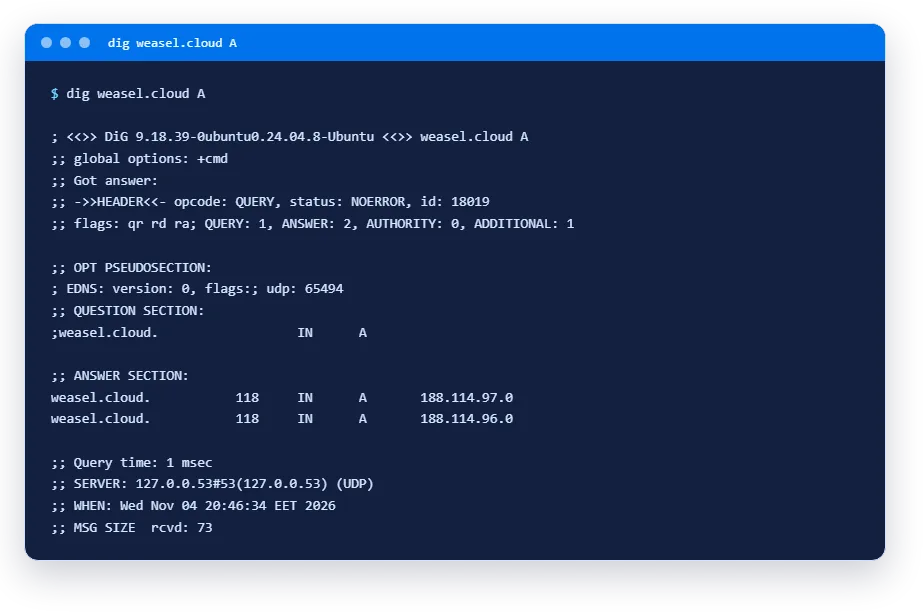
There is a lot of output, but you need only five places:
status: NOERROR: the query went through without errors. Other statuses are explained below.ANSWER SECTION: the answer itself: the name, the TTL (118seconds), the type (A) and two addresses:188.114.97.0and188.114.96.0.Query time: 1 msec: how long we waited. Here it is one millisecond.SERVER: 127.0.0.53: who answered. This is the local middleman from the previous section.flags: qr rd ra: an answer was received (qr), recursion was requested (rd) and is available (ra). The flagaa(authoritative answer) is missing: a resolver answered us, not the domain's own server.
For everyday checks such long output is not needed. The key +noall +answer leaves only the answer lines, and +short leaves only the values.
TTL and cache: why changes are not visible at once
The number 118 in the answer is the TTL (time to live): how many seconds the answer may be kept in the cache without asking again. The domain owner chooses it. Let us request the same address twice with a three-second pause:
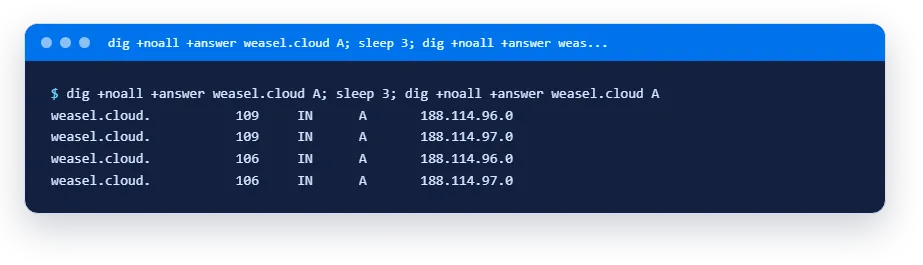
The counter dropped from 109 to 106: the answer came from the cache and has 106 seconds left to live. Note also that the order of the addresses changed. That is how load is spread, and it is normal. Two conclusions for you. First, answers really are remembered, and that speeds things up. Second, if you changed a domain record and the server still sees the old address, that is not necessarily an error: the cache may live as long as the TTL says. That is why TTL of a record is lowered in advance before a planned site move.
Different resolvers remember the answer at different times, so they have different remaining time. Let us ask two public resolvers directly (@address means "ask this one"). The key +stats adds the response time.
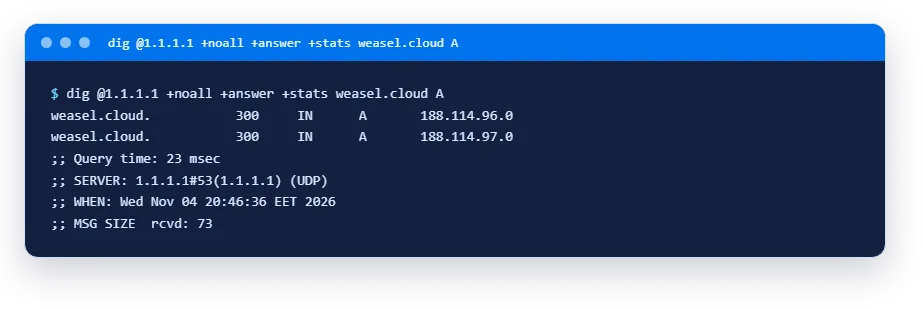
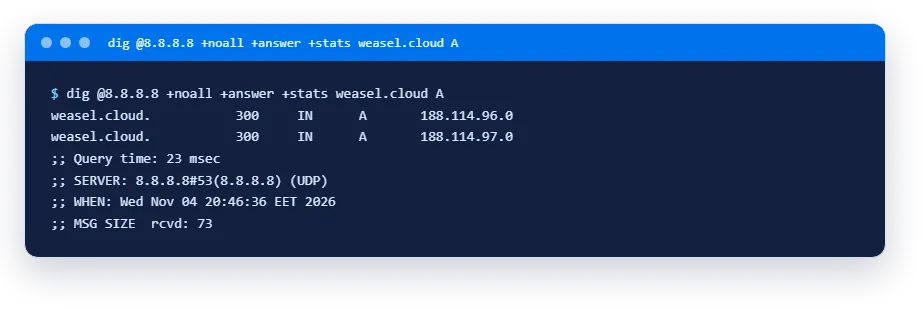
The addresses are the same, but the TTL here is 300, while our local middleman showed a remaining 118: it had remembered the answer earlier. That is normal, every resolver has its own cache and its own time of remembering. The order of the addresses may differ too, and that is not an error. If two resolvers return different addresses, either the record was changed recently and the new data has not spread yet, or the domain gives different clients different addresses (content delivery networks and load balancers do this).
Asking the domain's own server
To bypass caches, ask the authoritative server: it answers with what is written in the zone. First find out which servers are responsible for the domain (the NS record):
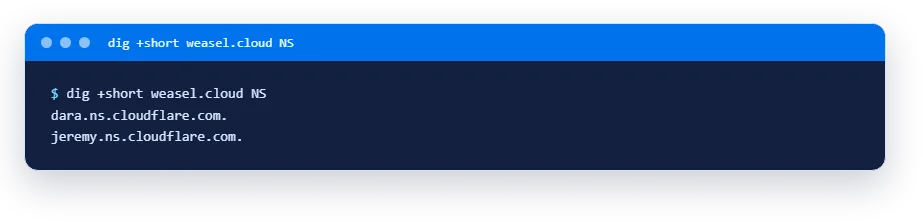
Here you can see that the DNS zone of our domain is served by Cloudflare servers. Now ask the first of them. We substituted its name automatically: the inner command $(dig +short NS weasel.cloud | head -1) takes the first line of the previous answer.
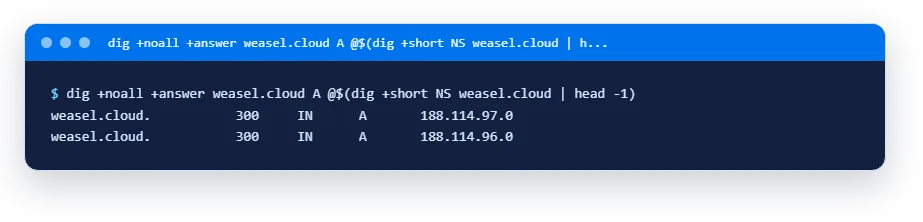
The authoritative server has TTL 3600: this is the "real" value from the zone. Resolvers showed the remainder, reduced as time passed. This trick is always useful: if the authoritative server returns the new address while public resolvers still return the old one, just wait until the TTL expires.
How the chain works: dig +trace
You can watch the whole path of a query. The key +trace makes dig walk the chain from the root to the answer itself, without trusting a ready answer from the resolver. We added -4 (IPv4 only) and +short (brief output).
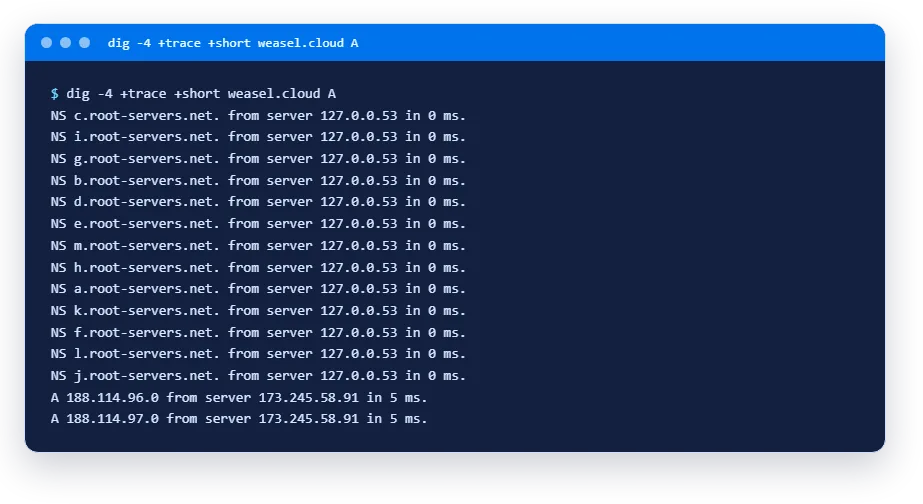
The first thirteen lines are the list of root servers (from a to m) that we got from the local middleman. The last pair of lines came from the domain's authoritative server: the two addresses. The intermediate step, the answer of the .cloud zone with the addresses of the weasel.cloud servers, is not printed by dig in brief mode. Note the time: the list of roots arrived in 0 ms from the local middleman, while the authoritative server answered in 5 ms, which is the network path to it.
What can go wrong: two different failures
When "DNS does not work", in practice it is one of two kinds. They are easy to tell apart by the text of the answer.
The name does not exist: NXDOMAIN
Let us ask for a name that is not in the weasel.cloud zone. We filtered the output by the header line and the SOA record.
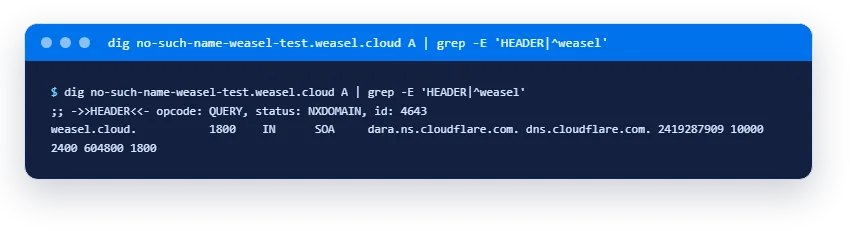
The status NXDOMAIN means: DNS works and honestly answered that there is no such name. The causes are usually simple: a typo in the name, a record that was not created or was deleted, an expired domain. What needs fixing is not the server but the record in the domain's zone. The SOA line in the answer is a standard addition: the server tells which zone it knows this from.
The DNS server cannot be reached: timeout
The second case is a question that got no answer at all. Let us reproduce it safely: ask the address 10.255.255.1, where there is no DNS server. The keys +time=2 +tries=1 limit the wait to two seconds and one attempt, otherwise dig waits noticeably longer.
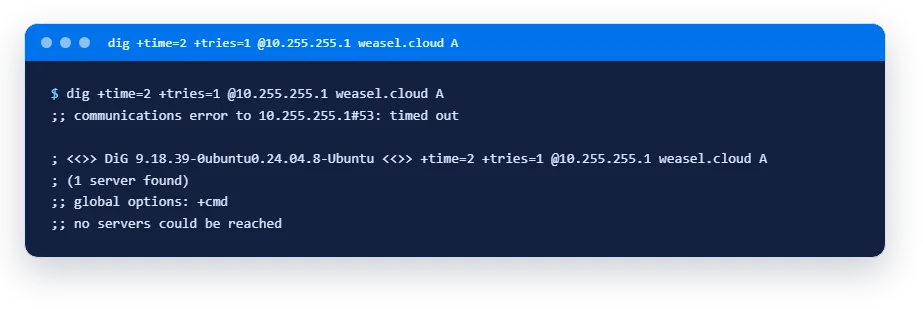
The phrase no servers could be reached is not "name not found" but "nobody answered". The causes are different here: a wrong resolver address, no route to it, a firewall blocking it, no service on it, or the server itself having no network access. The remedy is to check the network and the list of DNS servers, not the domain records.
| What you see | What it means | Where to look |
|---|---|---|
| status: NXDOMAIN | DNS works, the name does not exist | The record in the zone, spelling, domain expiry |
| no servers could be reached, timed out | No answer from the DNS server | resolvectl status, network reachability, firewall |
| The address is there but it is old | The cache is at work | TTL, the answer of the authoritative server |
| The address is right but the site does not open | The problem is not DNS | The service on the server, ports, firewall |
If DNS is fine but the site does not open
Before digging into DNS settings, check whether time is lost somewhere else. curl can split a request into stages. The key -w prints the name lookup time (time_namelookup) and the total time.
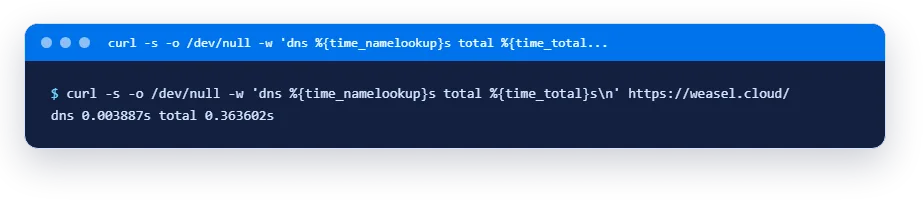
The name lookup took under four milliseconds out of more than three hundred and sixty, so DNS cost almost nothing in this request. If dns showed seconds, the cause of the slowness would be the resolver. When the name is found fast and the site still does not open, move to the next step: check whether the needed service listens on its port and whether a firewall closes it. The order of such a check is described in the guide VPS does not open: how to find the cause. If the network on the server is gone altogether, the article about restarting the network in Linux will help.
The reverse record: the name by the address
Ordinary DNS answers the question "what is the address of this name". The reverse record (PTR) answers the opposite: "what is the name of this address". Request it with the key -x. The example uses the address of the public resolver 1.1.1.1:
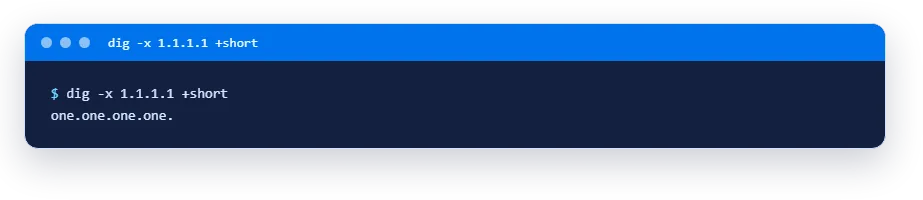
The name here is meaningful: the address belongs to a well-known public resolver. Such a query is needed where it matters that an address has a meaningful name, for example in logs and in checks that compare the address with the name. For your VPS you can set the name in the PTR record yourself in the panel. How to do it is described in the guide PTR record for IPv4.
How to see what the system sees
Finally, the command resolvectl query asks exactly the way programs on your server ask: through the middleman. The answer shows whether it came from the cache.
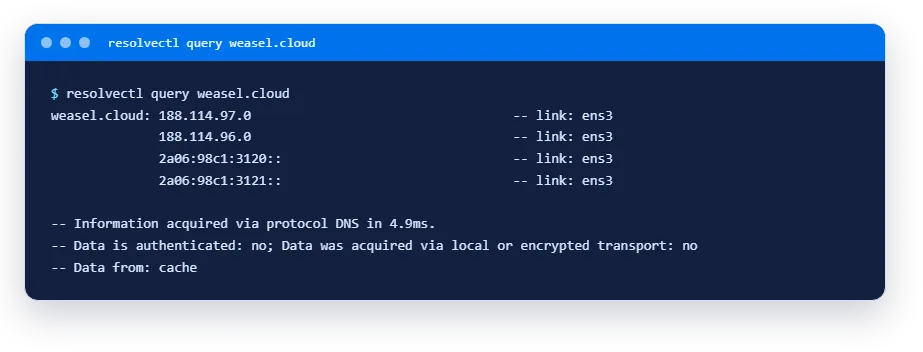
The line Data from: cache says the answer came from the middleman's cache, which is why it took 4.9 ms. Both record types are visible here: IPv4 (A) and IPv6 (AAAA), two addresses of each.
How to change DNS servers on a VPS
Sometimes the resolver given by default works badly or blocks needed domains, and you want to set another one. We did not run this procedure on the test server, so we give only the outline, without outputs. On Ubuntu 24.04 the list of servers is stored in the network configuration (the files in /etc/netplan/) or in the file /etc/systemd/resolved.conf, and it is applied by restarting the systemd-resolved service. Before changing, save a copy of the file and make sure you have access to the server console in the panel: a mistake in network settings can cut off SSH. After the change, check the result with resolvectl status, then with a plain dig.
Quick guide: what to do when DNS "does not work"
- See who the server asks:
resolvectl status. - Ask for the name:
dig name. ReadstatusandQuery time. NXDOMAIN: fix the record in the domain zone or check whether the domain has expired.no servers could be reached: check the network, the resolver addresses and the firewall.- The answer is old: compare with the authoritative server (
dig name @server) and wait for the TTL. - The address is right but there is no site: it is not DNS any more, check the service and the ports.
If you could not sort it out yourself, open a ticket and attach the outputs of steps 1 and 2: they help support see faster where the chain broke. How to do it is described in the guide how to open a support ticket.
FAQ
What is a DNS server in simple words?
A program that tells you the address of a site by its name. Some servers store the records of specific domains, others (resolvers) take questions from your programs and find the answer by asking the rest.
What is the difference between the server's DNS and the domain's DNS?
The server's DNS servers are the addresses the server itself asks to find other people's names (resolvectl status). The domain's DNS servers are where the records of your domain are stored (the NS record, visible with dig domain NS). These are different settings, and you do not need to change one for the sake of the other.
What does NXDOMAIN mean?
A DNS answer "such a name does not exist". DNS itself works fine in this case. Check the spelling, the presence of the record in the zone and the domain's expiry date.
What should I do if the DNS server does not respond?
Find out who the server asks (resolvectl status) and whether the query reaches it (dig @address name). If it prints no servers could be reached, the cause is the network, the resolver address or the firewall. There is no need to change domain records in this case.
Why do I see the old address after changing a record?
The answer may be cached until the TTL ends. Compare with the authoritative server: if it already returns the new value, you only need to wait. To make moves faster, lower the TTL of the record in advance.
Do I need my own DNS server on a VPS?
For a website, no. An ordinary server is fine with existing resolvers, and domain records are stored at the registrar or at a DNS host. People run their own authoritative server when they need full control over zones, and that is a separate task with its own risks.
Summary
- DNS turns a name into an address. Your server asks a resolver, and the resolver walks the chain from the root to the domain's authoritative server.
- Who the server asks is shown by
resolvectl status. What DNS answers is shown bydig name. NXDOMAIN: the name does not exist, fix the record.no servers could be reached: no answer, fix the network or the resolver.- TTL explains why changes are not visible at once: an answer lives in the cache until its time runs out.
- To bypass caches, ask the authoritative server:
dig name @server. - If DNS answers fast and the site does not open, the cause is not DNS.
DNS seems mysterious until you look at it live once. Then it turns out to be just four questions: who do we ask, what did they answer, how fresh is the answer, and did it arrive at all. These four checks fit into a minute and save you from long guessing when a site "cannot be found".
Read next



Deploy a server in 1 minute
Choose a location and a plan in the client area. The server starts automatically after payment.