
Renting an RDP server nearly always means renting a Windows machine that you reach over the Remote Desktop Protocol and see as a window on your own screen. "RDP", "Windows VPS" and "remote desktop service" are sold as three products, but they differ in other ways: who administers the system, how many people use it, and what the price includes. Below: the three formats, sizing for a trading bot, 1C and remote work, Windows licensing as Microsoft documents it, and how to keep port 3389 away from strangers.
RDP, Windows VPS and remote desktop service: what is the difference
RDP (Remote Desktop Protocol) is Microsoft's protocol for sending a picture of a remote screen to you and your mouse and keyboard back. You cannot rent a protocol, only a computer with it switched on, so an "RDP server" ad usually describes a Windows Server virtual machine with remote access already open.
A Windows VPS is the same virtual machine sold differently: a clean system, administrator rights, and you decide what goes on it. A "remote desktop" in the strict sense is a managed service. The provider keeps ready-made workplaces with a set of programs, and you sign in as an ordinary user. You do not administer the system there, and you are not meant to.
| Format | What you get | Who administers | Fits when |
|---|---|---|---|
| Windows VPS | A virtual machine with Windows Server and full access (the Administrator account) | You | You need your own software, bots, 1C, custom setup |
| "RDP server" in ads | Most often the same Windows VPS under another name | You, sometimes the provider | You want a desktop quickly and do not care about terminology |
| Remote desktop as a service | A ready workplace or a set of applications | The provider | Staff use one or two programs and do not want to configure anything |
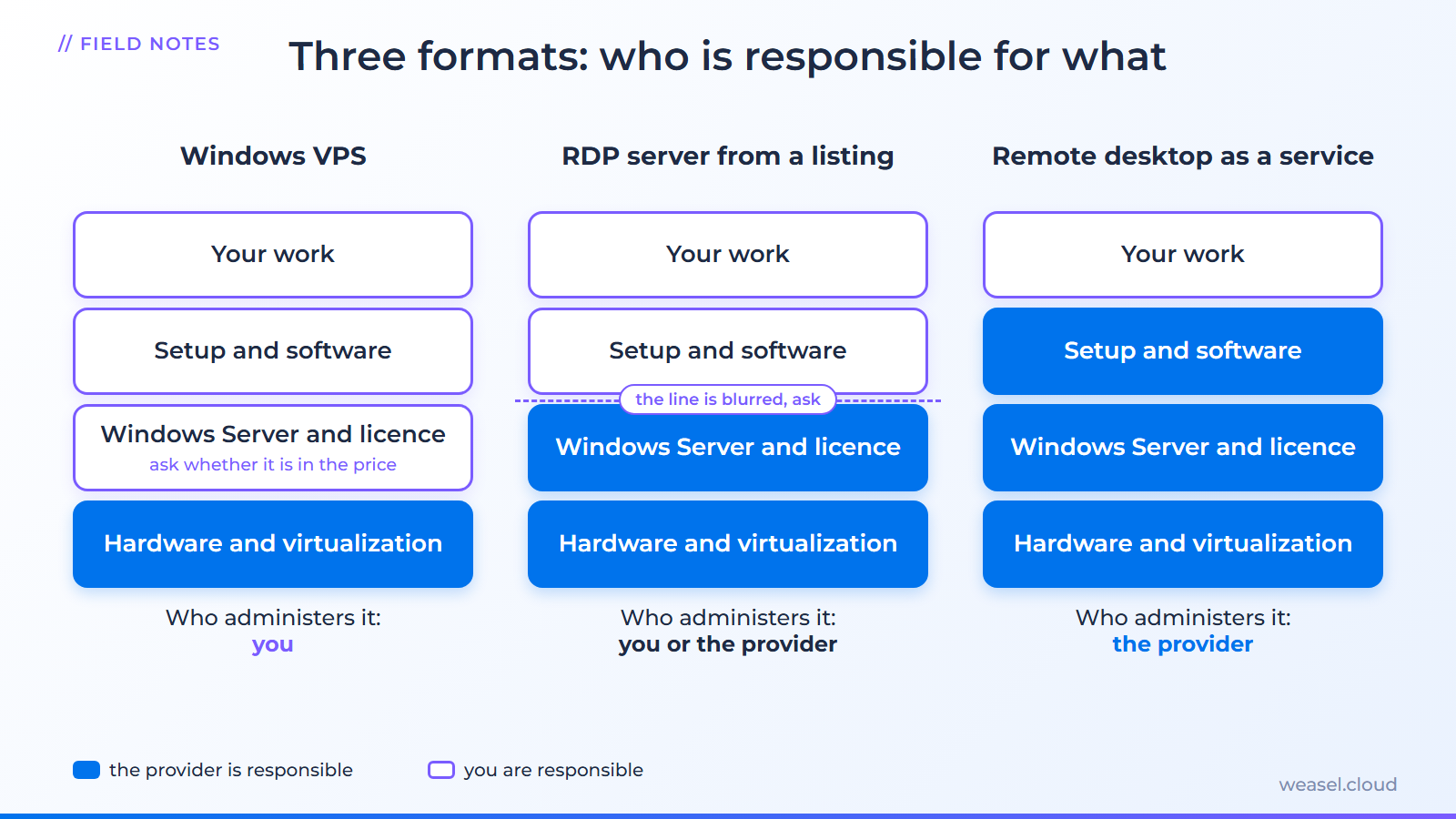
Some offers put many customers on a single Windows installation under different accounts. It is cheaper, but you share CPU and memory with strangers, and the licence question stays open. Ask directly whether the machine is yours alone.
Who needs what: bots, 1C, remote work
Trading bots and terminals (MetaTrader and similar) run around the clock. They need stability and a short path to the broker's server, not raw power. A Windows VPS fits: install the terminal, leave it running, and close the RDP window when you are done. Closing the window only disconnects you, and the session keeps running with the bot. "Sign out" ends the session and closes the terminal.
1C is where the formats diverge the most. One person in the database: an ordinary Windows VPS is enough. Five people from different places: you now run a terminal server (one Windows installation used by several people at once), which needs the Remote Desktop Session Host role and RDS CALs (see the licensing section). Licences for 1C itself are a separate matter with a separate vendor, and renting a server does not replace them.
Remote work (accounting from a home laptop, office software, reaching your desktop while travelling) usually means one or two people. A Windows VPS with its two administrative sessions covers it, and a managed remote desktop covers it if you would rather administer nothing.
How much CPU and RAM to rent
Start with the hard floor. For Windows Server 2022, 2019 and 2016 Microsoft states a 2 GB minimum for the Desktop Experience installation. For Windows Server 2025 it is 2 GB with 4 GB recommended. The absolute minimum for the system disk is 32 GB. The same page adds that real needs depend on the workload, so test before deciding.
From there, Windows takes its share and your programs need the rest. The figures below are our recommendation, not a measurement or a guarantee: real load depends on your programs. Verify them during a trial week.
| Scenario | Guideline (vCPU / RAM) | What to watch |
|---|---|---|
| One terminal with a bot | 1-2 vCPU, 2-4 GB | Latency to the broker matters more than power |
| Several terminals | 2-4 vCPU, 4-8 GB | Memory grows with every open terminal and chart |
| 1C for 1-2 people | 2-4 vCPU, 4-8 GB | Database size and disk speed |
| A desktop for one person | 2 vCPU, 4 GB | A browser with a dozen tabs eats more than you expect |
To check the size, open Task Manager after a week of normal work and look at the Performance tab. As a rule of thumb, if memory stays above 80-85%, or the CPU is pinned at 100% for long stretches, consider the next plan up. This threshold is our own heuristic, not a figure from the documentation. Memory a third full probably means you overpay. Ask the provider how resizing works before you pay.
Windows licensing: what to know before ordering
Windows Server is a paid product, and every provider either includes its licence in the plan or handles it separately. The licence decides how many people you may let onto the server. The facts below come from Microsoft's Windows Server documentation on Remote Desktop Services, checked in November 2026.
- Remote Desktop supports two concurrent connections for administration, and no RDS CAL is required for them.
- To allow more than two connections or ordinary users, you install the Remote Desktop Session Host role and hold RDS CALs.
- CALs come in two types: per user and per device. A per-user CAL cannot be tracked in a workgroup (a standalone server with no domain), so per-device is the usual choice there.
- A 120-day grace period applies, during which no licensing server is required. Once it ends, clients need a valid CAL issued by a licensing server to sign in.
- A CAL cannot be older than the server version: a Windows Server 2022 CAL does not work on a 2025 server.
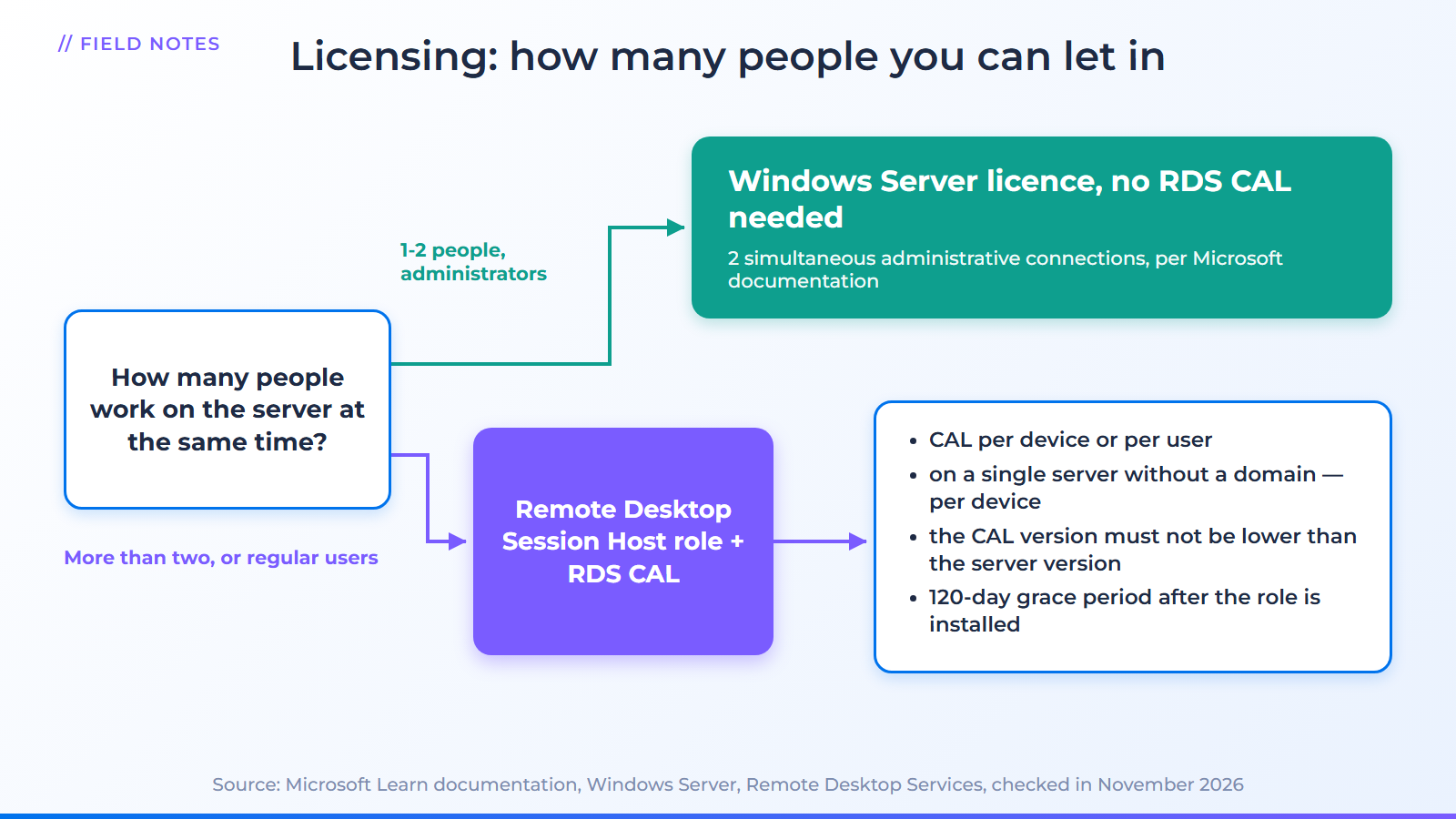
That settles the choice. Working alone or with one colleague: rent a Windows VPS and buy nothing extra. Five people: budget for five CALs and find out who buys them, you or the provider. A "Trial" or "evaluation" label on an image means a trial build, not a paid licence, so ask what replaces it after the trial ends.
RDP security: port, NLA and firewall
Automated scanners find an open port 3389 quickly. As a rule, failed sign-in entries (event 4625) show up in the Windows Security log soon after, which is normal for any public RDP. The goal is not to avoid them. The goal is to leave them nothing to guess.
The port. RDP listens on 3389 by default. Microsoft recommends not changing it, though you can do it in the registry if another program holds the port. A new port is not protection, because scanners find non-standard ones too. If you do change it, add a firewall rule for the new port first, or you lock yourself out.
NLA. Network Level Authentication checks your username and password before the server starts drawing a desktop. Until you pass, the server spends fewer resources on you. In Windows remote settings it is the option that allows connections only from computers running Remote Desktop with Network Level Authentication, which Microsoft labels more secure. Leave it on.
The firewall. The most effective step is to allow 3389 from your own IP address only. The three commands below run in PowerShell as administrator on the server itself. The first creates a rule that lets only one address in over RDP (203.0.113.5 is an example, use yours; any "what is my IP" service shows it). The second disables the built-in RDP rules that let everyone in. The third shows the result. Use the address you are connected from right now, or you will be refused the next time you connect.
New-NetFirewallRule -DisplayName "RDP-Allow-Office-IP" -Direction Inbound -Protocol TCP -LocalPort 3389 -RemoteAddress 203.0.113.5 -Action Allow
Disable-NetFirewallRule -Name RemoteDesktop-UserMode-In-TCP,RemoteDesktop-UserMode-In-UDP
Get-NetFirewallRule -DisplayName "RDP-Allow-Office-IP" | Get-NetFirewallAddressFilter-DisplayNameis a readable name for the new rule, so you can find it in the list later. Any name works.-RemoteAddressis the address allowed in. While only this rule is enabled, everyone else is refused at the network level.Disable-NetFirewallRule -Nameturns off the built-in RDP rules by their internal names (identical on English and Russian Windows, unlike the display names). Without this step the restriction does nothing: the rules are allow rules, and the built-in one would still let everyone in. Disabling the second rule (UDP) means RDP runs over TCP only.- In the output of the third command,
RemoteAddressshould show your address, notAny.
We ran these three commands on a fresh Windows Server 2025. The first created the rule (Enabled : True, Direction : Inbound, Action : Allow), the second printed nothing, and the third returned:
LocalAddress  : Any
RemoteAddress : 203.0.113.5
After the second command the built-in rules RemoteDesktop-UserMode-In-TCP and RemoteDesktop-UserMode-In-UDP showed Enabled : False. Checked from outside: port 3389 stopped answering from an address that is not in the rule. To undo everything, run Get-NetFirewallRule -DisplayName "RDP-Allow-Office-IP" | Remove-NetFirewallRule and Enable-NetFirewallRule -Name RemoteDesktop-UserMode-In-TCP,RemoteDesktop-UserMode-In-UDP: after them the port was open again.
It depends on your address. With a fixed IP, this is enough. With an address that changes (home internet, travel) you can lock yourself out, and the only way back is the provider's panel console, if there is one. Find out about the console first, and if your address moves, set up a VPN and allow RDP only from an address inside it. To test from your own computer, run Test-NetConnection 203.0.113.10 -Port 3389: the reply should contain TcpTestSucceeded : True.
The rest is plain hygiene: your own user instead of the default Administrator, a long unique password, regular Windows updates. For securing a new server in general, see Secure your first VPS. It is written for Linux, but the logic (a separate user, closed ports, updates) carries over.
How to choose: questions for the provider
Compare offers with one list of questions. "We do not know" is an answer too.
| Question | Why it matters |
|---|---|
| Is the Windows Server licence included? Is it a trial build? | Otherwise you buy one separately or reinstall |
| How many simultaneous sessions are allowed, and who buys the RDS CALs? | It sets how many people can use the server |
| Is it a separate virtual machine or a shared system? | Resources and data security depend on it |
| Which country is the server in, and what is the latency to the address you need? | For bots it matters more than power: run ping to the broker's server |
| Is there a console in the panel, with reboot from it? | The main way back if you firewall yourself out of RDP |
| Are there backups or snapshots, and how do you restore one? | A broken Windows setup is slow to repair |
| Can you test for long enough before paying in full? | The only way to see whether the resources are enough |
About WeaselCloud. In the my.weasel.cloud store, Windows is not offered on every plan: in most locations it is available from the Himalia plan (2 vCPU, 4 GB of memory, 60 GB SSD) upwards, while the two smallest plans, Io and Calisto, offer Linux only. Windows Server images (for example, 2022 in Russian) are listed in the Rebuild section of the service page. According to the cabinet's knowledge base, the Windows image is installed as a trial version (Trial) for 180 days, after which the server starts shutting down every 2 hours, so it is better to settle the licence question with support before you pay. Access details arrive by email at the address given when ordering. The service page has a Console tab and a Hard reboot button: we checked them on a Linux server, not with a Windows image. Before ordering, open the page for your location and read the OS line for the exact plan.
FAQ
How is an RDP server different from a Windows VPS?
Technically it is not: both are virtual machines with Windows and an RDP connection. "RDP" names the way you connect, and it ended up in the ads. The difference is in what you receive: a clean system with administrator rights, or a configured set of programs.
How many people can work on one server at the same time?
Two administrative connections with no extra licences. For more people you need the Remote Desktop Session Host role and RDS CALs. Without them the system either caps the number of sessions or you break the licence terms.
Can I leave port 3389 open to everyone?
Technically yes, but it is the worst option. Restrict access by IP or allow it only through a VPN, keep NLA on, and set a long password. Changing the port does not count as protection.
What happens to my bot if I close the RDP window?
As a rule, nothing. Closing the window ends only your connection, and the session with the bot keeps running. The bot stops if you choose "Sign out", if Windows reboots after an update, or if memory runs out.
How do I know whether the resources are enough?
Work for a week on a small plan and watch Task Manager. Memory steadily above 80-85%, or the CPU at 100%, means the next plan up. Microsoft's minimum is a threshold for installing the system, not for your work.
Takeaways
- "RDP rental" and "Windows VPS" are essentially the same thing: a virtual machine with Windows and an RDP connection. What differs is what you are handed and who administers it.
- For one person or one bot, rent a Windows VPS. For a team you need a terminal server with RDS CALs.
- The Windows Server licence allows two simultaneous administrative connections without CALs, and everything beyond that is licensed separately.
- Size memory from your programs: Windows Server with a desktop needs at least 2 GB by Microsoft's requirements, and your software needs more on top.
- Do not leave 3389 open to the internet: firewall by IP, NLA on, a VPN for a changing address.
- Close the RDP window instead of signing out, or the bot stops together with the session.
Read next
Deploy a server in 1 minute
Choose a location and a plan in the client area. The server starts automatically after payment.